
 All news is rigorously fact-checked and reviewed by leading blockchain experts and seasoned industry insiders.
Below you will find the master comparison table with our ranking of the best Solana wallets in 2025.
| Wallet | Type | Security | ETH Support | Ease of Use | Extra Features | Rating |
|---|---|---|---|---|---|---|
| Ledger Nano Flex | Hardware | Very High (cold storage, Secure Element) | Yes | Moderate (uses Ledger Live app) | Touchscreen, Ledger Live integration | ⭐⭐⭐⭐⭐ (5/5) |
| Trezor Safe 5 | Hardware | Very High (cold storage, open-source) | Yes | Easy (color touchscreen) | Haptic feedback, Trezor Suite app | ⭐⭐⭐⭐☆ (4.5/5) |
| OneKey Pro | Hardware | Very High (air-gapped option) | Yes | Easy (large display) | Wireless, NFC & Bluetooth support | ⭐⭐⭐⭐☆ (4/5) |
| Ellipal Titan | Hardware | High (air-gapped QR device) | Yes | Moderate (QR code transfers) | Mobile app, tamper-proof metal | ⭐⭐⭐⭐☆ (4/5) |
| BitBox02 | Hardware | High (secure chip, microSD backup) | Yes | Easy (simple touch sliders) | Open-source, microSD backups | ★★★☆☆ (3/5) |
| Phantom Wallet | Desktop | High (non-custodial) | Yes | Very Easy | NFT & DeFi support, browser extension | ⭐⭐⭐⭐⭐ (5/5) |
| Exodus Wallet | Desktop | High (user-controlled keys) | Yes | Very Easy | Built-in exchange, multi-platform | ⭐⭐⭐⭐☆ (4.5/5) |
| Backpack Wallet | Desktop | High (non-custodial) | Yes | Moderate | xNFT platform, multi-chain | ⭐⭐⭐⭐☆ (4/5) |
| Atomic Wallet | Desktop | Medium (closed source) | Yes | Easy | Atomic swaps, staking | ⭐⭐⭐☆☆ (3.5/5) |
| MathWallet | Desktop | Medium (non-custodial) | Yes | Moderate | Supports 100+ chains, dApp browser | ★★★☆☆ (3/5) |
| Solflare Wallet | Mobile | High (non-custodial) | No (Solana-only) | Easy | Built-in SOL staking, NFT support | ⭐⭐⭐⭐⭐ (5/5) |
| Trust Wallet | Mobile | High (non-custodial) | Yes | Easy | DApp browser, huge coin support | ⭐⭐⭐⭐☆ (4.5/5) |
| SafePal Wallet | Mobile | High (can pair hardware) | Yes | Moderate | DApp browser, hardware option | ⭐⭐⭐⭐☆ (4/5) |
| Glow Wallet | Mobile | High (non-custodial) | No (Solana-only) | Very Easy | Simple UI, Solana NFTs | ⭐⭐⭐☆☆ (3.5/5) |
| Coin98 Wallet | Mobile | High (non-custodial) | Yes | Moderate | Built-in swap & bridge, 50+ chains | ★★★☆☆ (3/5) |
| Binance | Online Exchange | Medium (custodial, SAFU fund) | Yes | Moderate (feature-rich) | Staking, card, DeFi ecosystem | ⭐⭐⭐⭐☆ (4.5/5) |
| Coinbase | Online Exchange | Medium (custodial, regulated) | Yes | Very Easy | Insurance on assets, staking | ⭐⭐⭐⭐☆ (4/5) |
| Kraken | Online Exchange | Medium (custodial, high security) | Yes | Moderate | On-chain staking, advanced trading | ⭐⭐⭐⭐☆ (4/5) |
| Crypto.com | Online Exchange | Medium (custodial) | Yes | Easy (mobile-focused) | Visa card, earn interest | ⭐⭐☆★☆ (3.5/5) |
| Bitget | Online Exchange | Medium (custodial) | Yes | Moderate | Copy trading, futures | ★★★☆☆ (3/5) |
Hardware Wallets (Cold Storage)
Hardware wallets are physical devices that keep your private keys offline for maximum security. They are ideal for long-term storage of SOL and other crypto assets, as they protect against online hacks. Below are the top five hardware wallets for Solana users, each balancing security and usability in different ways.
Top 5 Hardware Wallets:
- Ledger Nano Flex – ⭐⭐⭐⭐⭐
- Trezor Safe 5 – ⭐⭐⭐⭐☆
- OneKey Pro – ⭐⭐⭐⭐☆
- Ellipal Titan – ⭐⭐⭐⭐☆
- BitBox02 – ⭐⭐⭐☆☆
| Hardware Wallet | Security | ETH Support | Ease of Use | Extra Features |
|---|---|---|---|---|
| Ledger Nano Flex | Secure Element, Offline storage | Yes (Ledger Live app) | Moderate (requires Ledger Live) | E-Ink touchscreen, Bluetooth |
| Trezor Safe 5 | Open-source, Secure Element | Yes (Trezor Suite) | Easy (touchscreen UI) | Color display, haptic feedback |
| OneKey Pro | Air-gapped option, 4× EAL6+ chips | Yes (Multi-chain supported) | Easy (large screen, wireless) | QR signing, wireless charging |
| Ellipal Titan | Air-gapped (QR only), metal shell | Yes (via Ellipal app) | Moderate (QR code transfers) | Mobile app control, NFT support |
| BitBox02 | Secure chip, microSD backup | Yes (ETH, ERC20 via app) | Easy (simple touch gestures) | Compact design, open source |
1. Ledger Nano Flex
What makes it secure?
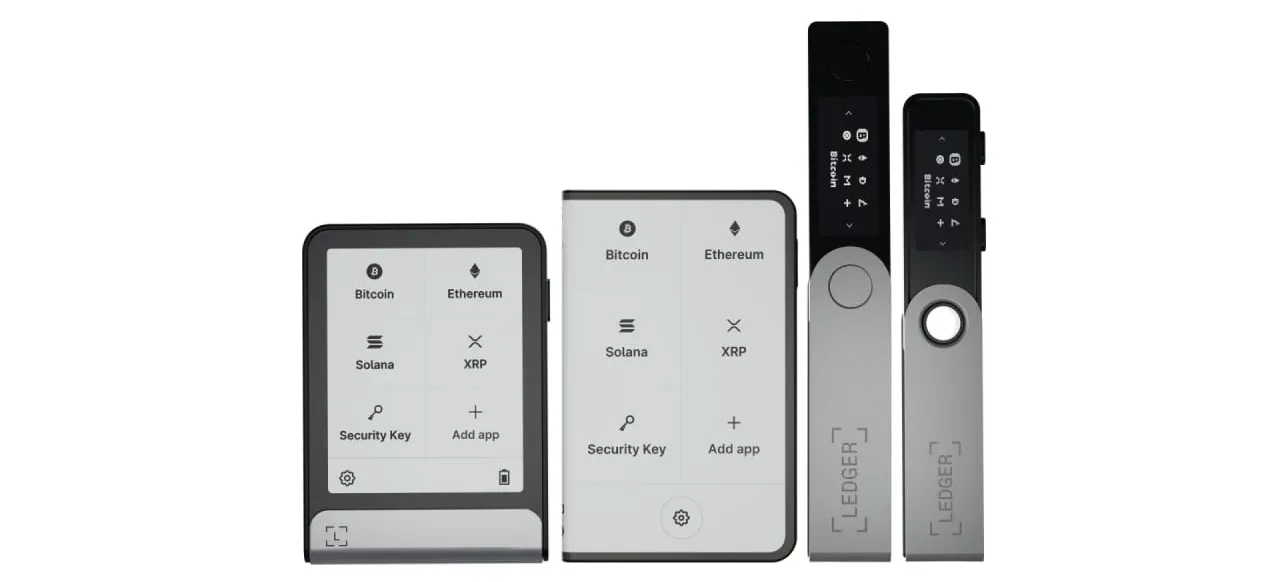
The Ledger Nano Flex keeps your private keys in a certified Secure Element chip and remains offline except when signing transactions. The device requires physical confirmation on its touchscreen for every operation, greatly enhancing security.
Who should use it?
This wallet is ideal for Solana users who prioritize security but still want a user-friendly experience. Its large E-Ink display makes navigating and confirming transactions easy, even for beginners.
Does it support Ethereum and other chains?
Yes. Ledger Flex supports Solana and thousands of other assets. Through the Ledger Live app, you can manage Bitcoin, Ethereum (including ERC-20 tokens), NFTs, and more alongside your SOL.
How is the user experience?
The Ledger Flex offers a vastly improved UX over previous Ledgers, thanks to the touchscreen. Reviewing details of a SOL transaction or an ETH smart contract call is straightforward on the large screen. It connects via USB or Bluetooth to Ledger Live, which is intuitive and feature-rich.
Any extra features?
It comes with the Ledger Live companion app, where you can stake SOL or swap assets securely. The Flex also includes the Ledger Recovery Key service option, which provides a backup solution (use is optional). Additionally, a special “Solana Edition” Flex is available, themed for SOL enthusiasts.
Overall, why pick Ledger Nano Flex?
As one of the most trusted names in hardware wallets, Ledger’s latest model delivers top-notch security and solid ease-of-use. If you want to secure your Solana holdings for the long run without sacrificing convenience, the Nano Flex stands out as a premier choice.
Rating: ⭐⭐⭐⭐⭐ (5/5)
2. Trezor Safe 5
Pros:
|
Cons:
|
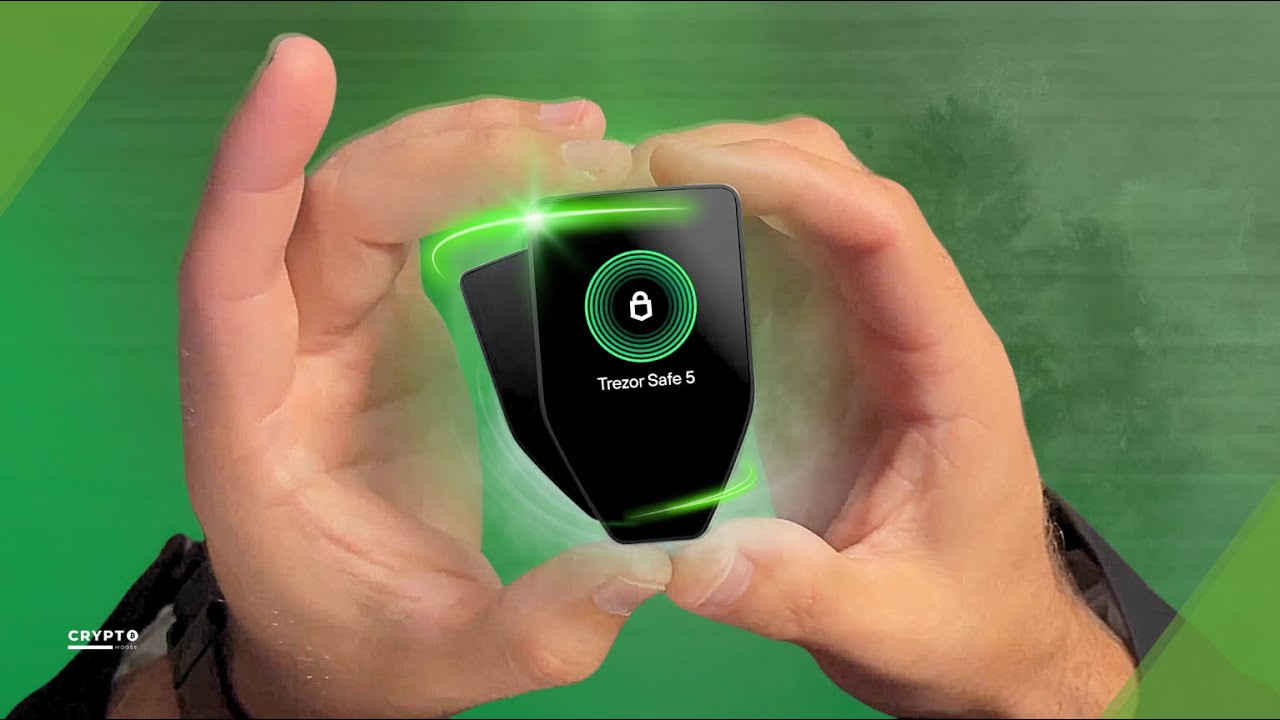
The Trezor Safe 5 is a powerful upgrade in Trezor’s lineup, bringing a full-color touchscreen and enhanced security features. It integrates with the Trezor Suite application, which makes it simple to manage your portfolio and even stake certain assets. While Solana isn’t directly managed through Trezor Suite yet, you can connect the Safe 5 with Solana wallets like Solflare to use it as a secure signing device.
This hardware wallet shines in security – your keys never leave the device, and its open-source approach means the community continually reviews and audits its code. Setting up the Safe 5 is straightforward: you’ll create a PIN and recovery seed on the device itself. The new haptic feedback confirms your touches, adding confidence when approving a transaction (say, sending 10 SOL).
Using the Safe 5 daily is quite convenient for a hardware wallet. The touchscreen enables clear signing of transactions – for example, viewing a Solana address and confirming a transfer is much easier than on single-line screens of older devices. The device supports a wide array of cryptos (Bitcoin, ETH, Solana via partner apps, and more), making it a versatile vault for a diverse crypto portfolio.
Rating: ⭐⭐⭐⭐☆ (4.5/5)
3. OneKey Pro
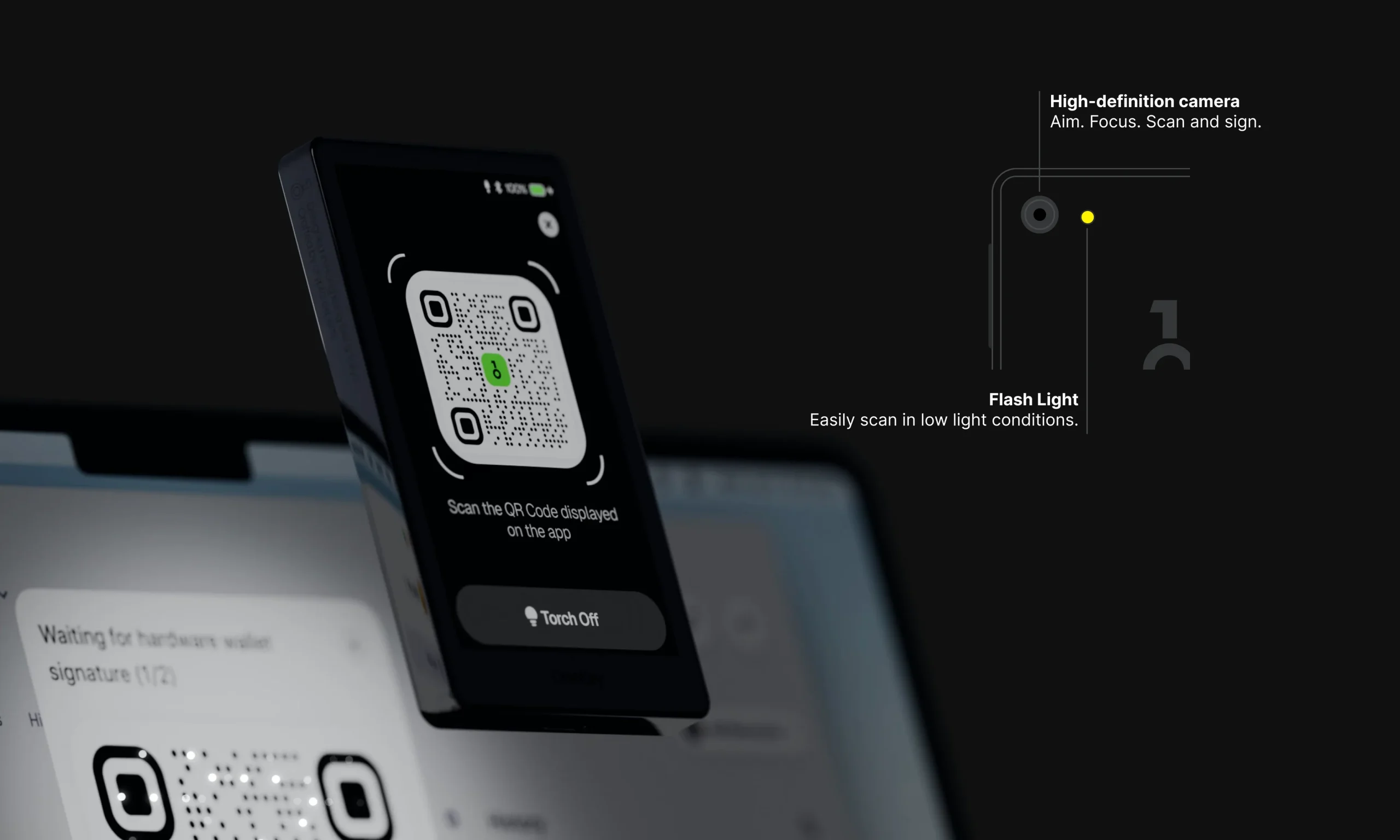
- Unbox and Charge: Power on the OneKey Pro (it charges wirelessly on its dock). The 3.5-inch touchscreen will greet you with setup options.
- Initialize the Wallet: Tap “Create Wallet” and follow the prompts to generate a new recovery phrase. Write down your 12/24-word seed carefully and confirm it on the device.
- Set PIN & Connect App: Choose a secure PIN on the device. Then install the OneKey mobile or desktop app. Use the app to scan the QR code shown on the OneKey Pro’s screen to pair (OneKey Pro uses AirGap signing via QR for ultimate security).
- Add Ethereum Account: In the OneKey app, add an Ethereum account. The OneKey Pro will display a QR code to confirm the account derivation. Scan it with the app – now you can manage ETH on OneKey. Repeat for Solana: add a Solana account, and follow the similar QR pairing process.
- Manage and Transact: Now you can see both your SOL and ETH accounts in the OneKey app. When sending SOL or ETH, the app will prompt you to scan a QR code with the OneKey Pro. The device shows transaction details (e.g. sending 5 SOL to an address) on its screen – tap to approve, and scan the final QR with the app to broadcast the signed transaction. Your private keys never leave the OneKey Pro!
This step-by-step demonstrates how OneKey Pro is set up for multi-chain use, specifically Solana and Ethereum. Thanks to its Air-gapped QR code signing, you get a seamless yet ultra-secure experience. Once configured, day-to-day use is straightforward: you initiate transactions in the app and simply confirm them on the OneKey device.
Rating: ⭐⭐⭐⭐☆ (4/5)
4. Ellipal Titan
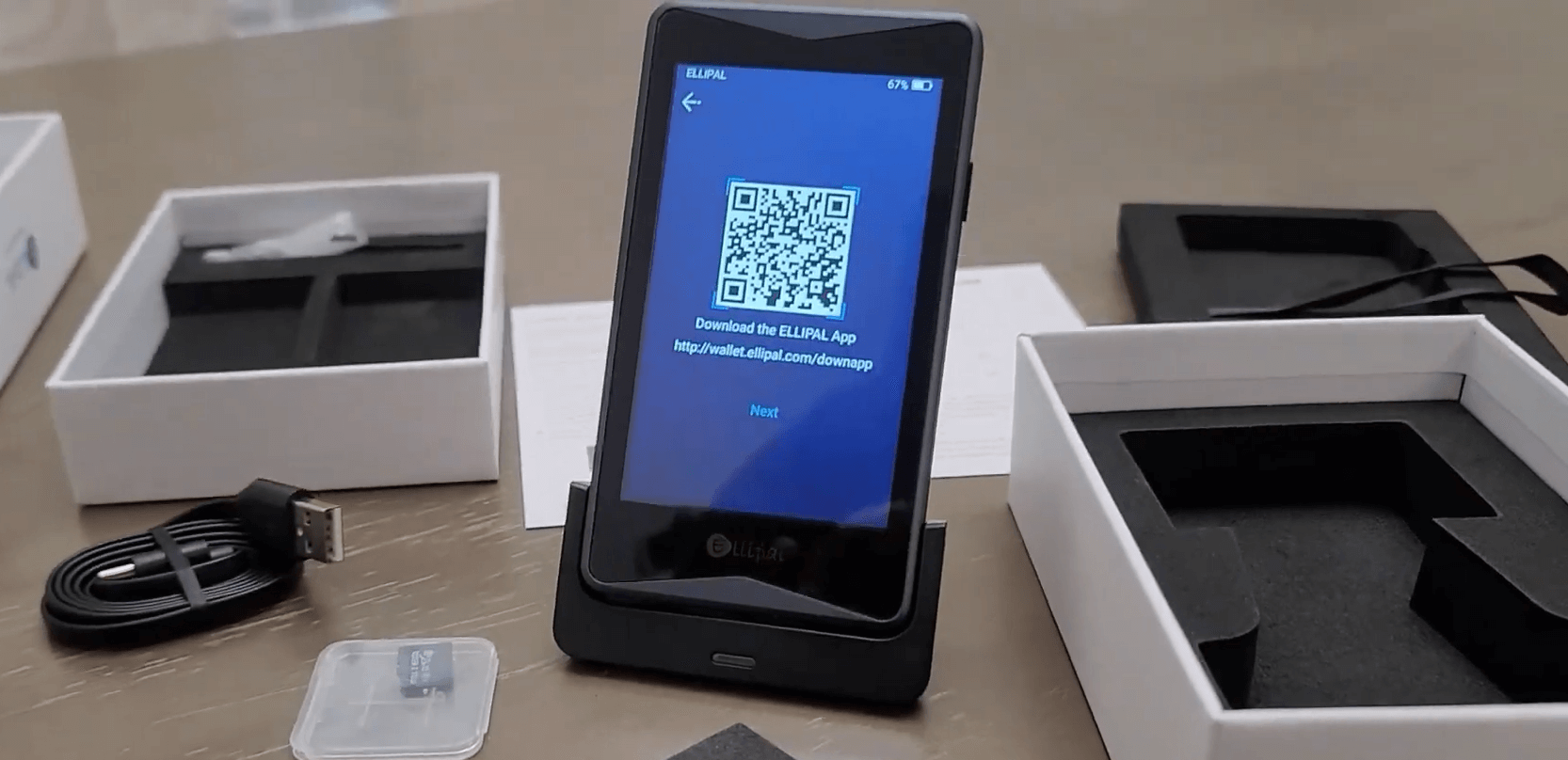
🔒 Security: The Ellipal Titan is completely air-gapped – it has no WiFi, Bluetooth, or USB connectivity. All communication is done via QR codes, which means your SOL private keys remain isolated from internet access. Its metal body is tamper-resistant, sealing your device from physical intrusion. This gives SOL holders peace of mind that their keys are safe from remote attacks.
👍 Usability: Despite being fully offline, the Titan is user-friendly. Its touchscreen and the companion Ellipal mobile app work together smoothly. Scanning QR codes to send a Solana transaction or sign an Ethereum message might sound cumbersome, but Ellipal’s app makes it quick – point your phone’s camera at the Titan’s screen, and you’re done. The interface on the device is clean, making it easy even for non-techies to navigate through accounts and verify transaction details.
🔗 Ethereum Integration: Ellipal Titan isn’t just for Solana; it supports over 40 blockchains, including Ethereum. You can manage ETH and ERC-20 tokens in the same Ellipal app alongside your SOL. Switching between Solana and Ethereum accounts is seamless in-app. While the Titan signs transactions offline for each blockchain, the experience is unified. This multi-chain support means you won’t need separate devices or wallets for your diverse portfolio – one Titan can secure SOL, ETH, BTC, and more all in one place.
Ellipal’s approach of using QR codes might feel novel, but it’s a clever balance between security and convenience. For instance, if you want to stake SOL or send some SPL tokens, the Ellipal app will prepare the transaction and display a QR code. You scan it with the Titan’s camera, the Titan shows the details (like “Stake 10 SOL to Validator X”) on its screen for you to confirm, then it produces a signed QR code. Scan that with the app, and the transaction is sent. No cables or wireless signals involved at all.
Beyond the technology, Ellipal Titan is known for supporting SOL staking and NFT viewing via the app. You can’t view the colorful NFTs on the hardware screen (it’s monochrome), but the app will show them while the Titan secures the keys. It’s a solid choice for SOL holders who want top-tier security but still desire a relatively straightforward user experience across multiple blockchains.
Rating: ⭐⭐⭐⭐☆ (4/5)
5. BitBox02
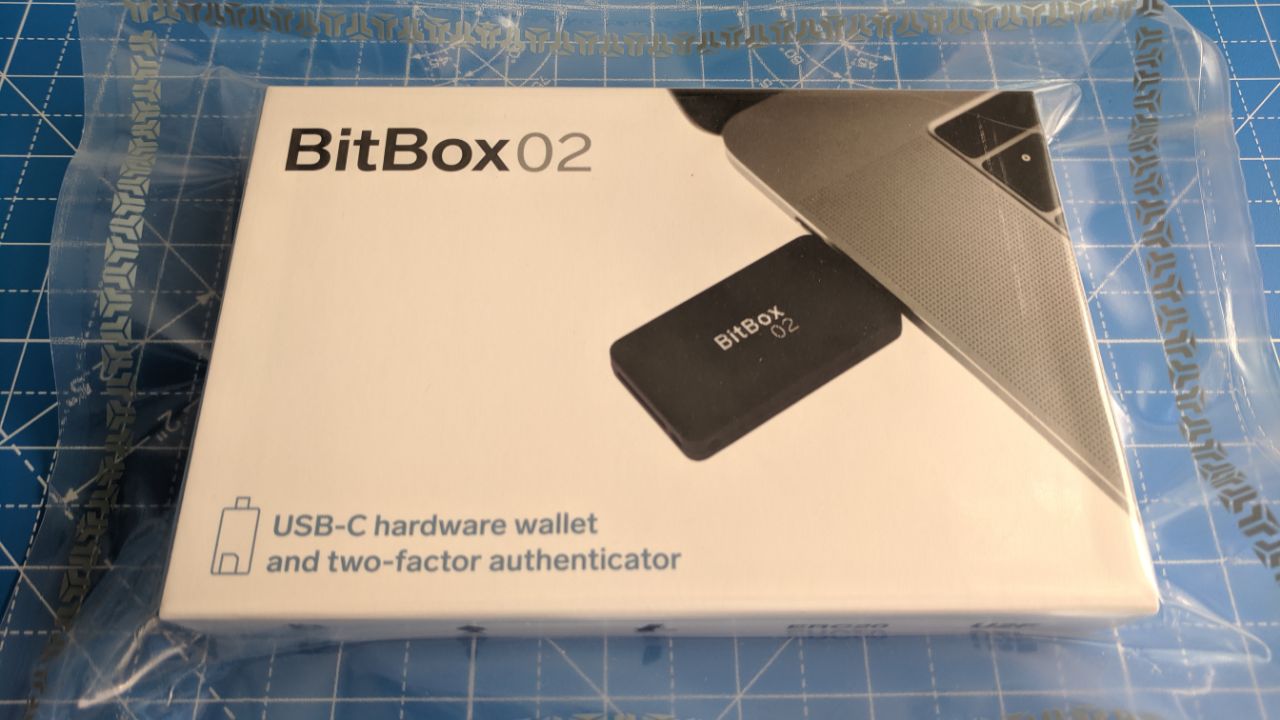
BitBox02 is a compact and security-focused hardware wallet made in Switzerland. It’s loved for its simplicity and open-source approach. The device itself has a minimalistic design – no buttons, you interact by touching and sliding on its sides. For Solana users, it’s important to note that the BitBox02’s native app doesn’t support Solana at the moment. However, you can still store SOL by connecting your BitBox02 to a third-party Solana wallet (for example, using the BitBox with the Solflare web wallet via Wallet Adapter).
In practice, using BitBox02 for Solana means you’d use BitBox’s secure hardware to confirm transactions, while managing your SOL account through another interface. It’s an extra step compared to Ledger or Trezor, but it grants the same security benefits – your keys remain in the BitBox02.
Where BitBox02 truly shines is with Bitcoin, Ethereum, and ERC-20 token management through its native BitBoxApp. The experience is smooth and beginner-friendly. If your crypto holdings extend beyond Solana into BTC or ETH, BitBox02 handles those with ease, including features like built-in coin mixing support for privacy and direct integration with DeFi apps via WalletConnect.
Overall, BitBox02 is a great little wallet for multi-crypto security, though a Solana-purist might find the lack of direct SOL support a drawback. It’s perfect for those who prioritize open-source security (its code is fully auditable) and want a microSD backup of their seed for extra safety.
Rating: ★★★☆☆ (3/5)
Pro Tip: If you decide on BitBox02, make sure to purchase the “Multi Edition” (not the Bitcoin-only edition) so that you have the ability to secure a wide range of coins. Even though Solana isn’t natively in the BitBoxApp, the Multi Edition will work with Solana via compatible third-party wallets.
Desktop Wallets (Software Wallets for PC/Browser)
Desktop Solana wallets are software applications or browser extensions that let you manage SOL on your computer. They are usually non-custodial, meaning you control the secret recovery phrase. Desktop wallets provide quick access to Solana dApps (DeFi, NFT marketplaces) and often support multiple blockchains or assets. Below we compare five of the best desktop options for SOL holders.
Top 5 Desktop Wallets:
- Phantom Wallet – ⭐⭐⭐⭐⭐
- Exodus Wallet – ⭐⭐⭐⭐☆
- Backpack Wallet – ⭐⭐⭐⭐☆
- Atomic Wallet – ⭐⭐⭐☆☆
- MathWallet – ★★★☆☆
| Desktop Wallet | Security | ETH Support | Ease of Use | Extra Features |
|---|---|---|---|---|
| Phantom | Non-custodial (browser extension or app) | Yes (multi-chain: SOL, ETH, etc.) | Very easy (beginner-friendly) | NFT gallery, built-in DEX swap |
| Exodus | Non-custodial (closed source app) | Yes (multi-chain support) | Very easy (great UI) | Built-in exchange, portfolio tracker |
| Backpack | Non-custodial (open source) | Yes (Solana, Ethereum, more) | Moderate (new interface) | xNFT support, integrated dApp store |
| Atomic Wallet | Non-custodial (closed source) | Yes (multi-chain) | Easy | Atomic swaps, SOL staking |
| MathWallet | Non-custodial | Yes (100+ chains) | Moderate (less polished UI) | dApp browser, mobile & extension |
1. Phantom Wallet
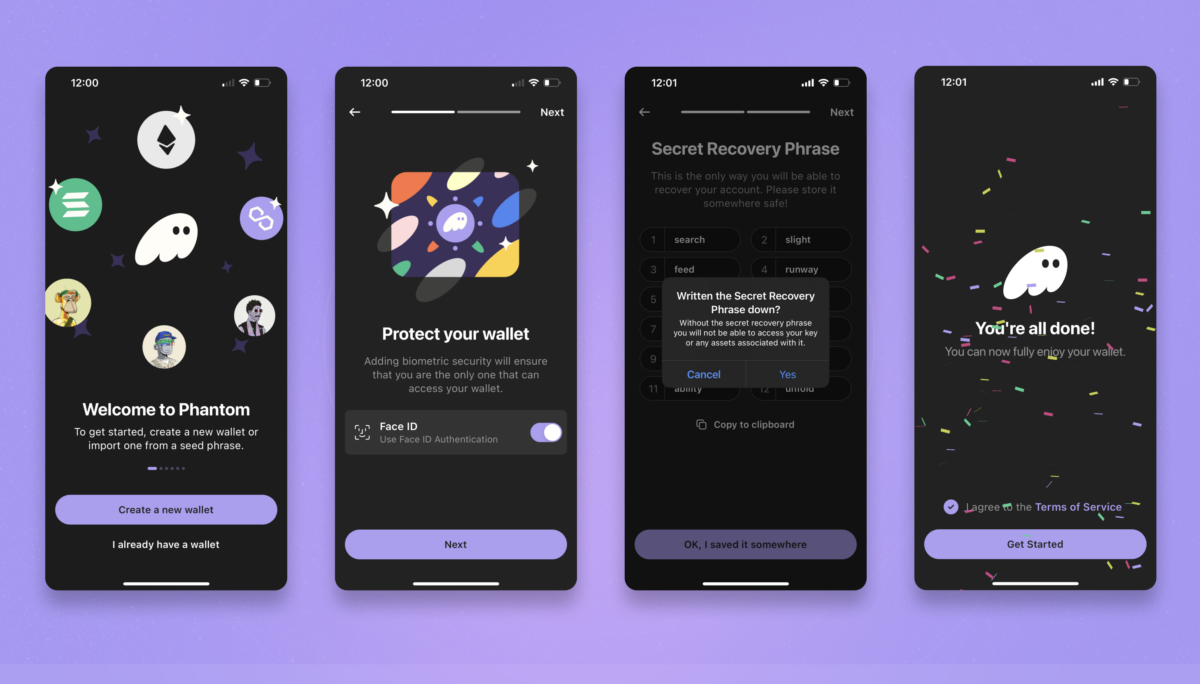
What makes Phantom so popular?
Phantom is built exclusively for Solana (with multi-chain added recently) and provides an incredibly smooth user experience. Security-wise, your private keys are encrypted on your device, and Phantom has phishing protection (it warns you if a site is malicious) plus open-source code that’s been audited. It’s like the “MetaMask of Solana” but even more user-friendly.
How do I use Phantom on desktop?
You install Phantom as a browser extension (Chrome, Firefox, Edge, or Brave). Once added, you’ll create a new wallet or import one using a seed phrase. The extension pops up as a small window when needed. Managing SOL is as simple as clicking the Phantom icon: you can see your balance, recent transactions, and even your NFT collectibles right there.
Does Phantom support Ethereum and other chains now?
Yes! Initially Phantom was Solana-only, but it has expanded. You can add an Ethereum and even a Polygon wallet within Phantom now. There’s a network switcher – meaning you could hold SOL, ETH, and MATIC all in one Phantom wallet. When you switch to Ethereum, Phantom works like MetaMask (even has a built-in swap feature for ETH tokens).
Who is Phantom best suited for?
Anyone from beginners to daily DeFi degens. Newcomers love Phantom’s simplicity – the setup is just a few clicks, and the interface is not cluttered. Advanced users appreciate that Phantom connects to every Solana dApp seamlessly. For instance, if you go to a Solana DeFi site or NFT marketplace, you’ll usually see a “Connect Wallet” button with Phantom listed first. One click and you’re in, ready to swap tokens or mint an NFT.
Any cool features within Phantom?
Plenty: It has an in-app token swap, so you can swap SOL to USDC or other SPL tokens without leaving the wallet. It also automatically creates separate token accounts under the hood – you won’t have to manually manage SOL for rent except the wallet ensures you always have a bit for fees. Another neat feature: Phantom shows your collectible NFTs with images and names, which adds a nice touch for NFT collectors. Lastly, Phantom allows adding custom SPL tokens easily; just paste the token’s address if it’s not already recognized.
Rating: ⭐⭐⭐⭐⭐ (5/5)
2. Exodus Wallet
Pros:
- Beautiful, intuitive interface – great for beginners.
- Supports Solana and 250+ other assets in one app.
- Built-in exchange feature for swapping (you can swap SOL to ETH or other coins without leaving the wallet).
- Portfolio tracking with charts and breakdowns.
- Offers SOL staking directly (earn rewards by staking Solana through Exodus).
- Available on desktop and mobile, with sync option via secret phrase.
Cons:
- Closed source software (code isn’t publicly auditable).
- No native dApp browser – can’t directly connect to Solana DeFi apps, mostly a storage and transfer wallet.
- Exchange feature convenience comes with higher spread/fees compared to using a DEX.
- While multi-chain, it doesn’t support every token on Solana (some very new SPL tokens might not appear until they update metadata).
- Heavy app (due to graphics and features) – uses more disk space and memory.
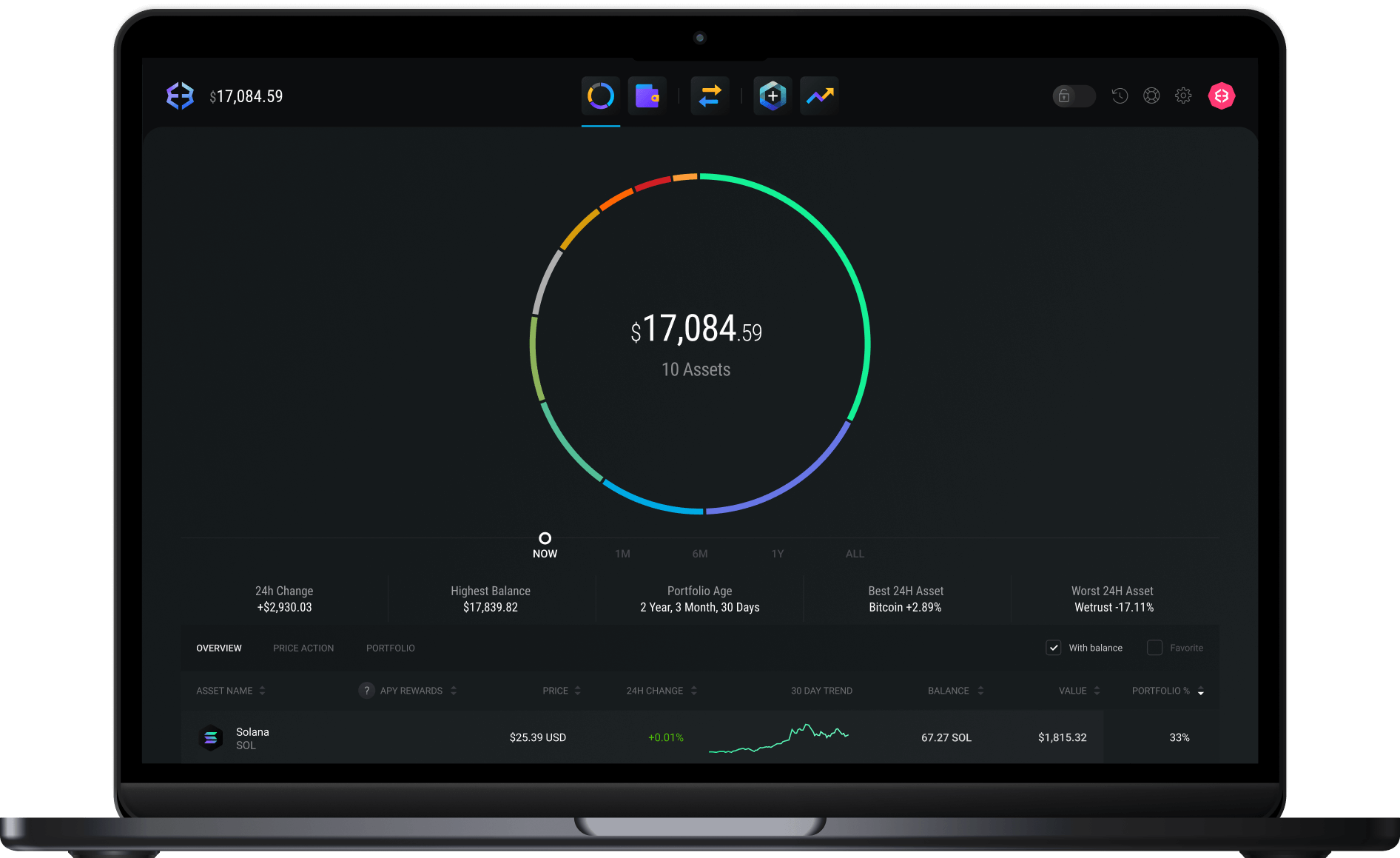
Exodus is often recommended to those new to crypto because of its slick design. When you open Exodus, you’ll see your portfolio value and colorful charts – it feels like a modern banking app, not a geeky blockchain interface. Adding Solana on Exodus is automatic; SOL is one of their default supported assets. You can click on Solana in your wallet list, and it will show your SOL balance, and an option to stake. Staking SOL through Exodus just takes a couple of clicks – the app handles finding a validator and delegating for you.
One thing to highlight: Exodus is non-custodial, meaning you get a 12-word secret phrase on setup. You remain in control of your keys. For security, you can optionally password-protect the app on launch. While not as ultra-secure as a hardware wallet, it’s safe for moderate amounts if your computer is malware-free and you keep that secret phrase offline.
Although Exodus doesn’t connect to dApps directly, you can use it in tandem with the Exodus Web3 Wallet (a browser extension) or simply use a different wallet for dApp interactions. Many SOL holders actually keep long-term SOL in Exodus for staking and use Phantom for daily DeFi, for example.
Exodus’s multi-asset support is a huge plus. If you have some BTC, some ETH, some SOL – you can see it all in one place. And with the built-in exchange, converting a bit of ETH to SOL to dive into a Solana NFT mint is doable right inside the wallet (though for large trades, a proper exchange might be more cost-effective). Overall, Exodus is like the comfortable all-in-one wallet that’s easy to use and visually pleasing.
Rating: ⭐⭐⭐⭐☆ (4.5/5)
3. Backpack Wallet
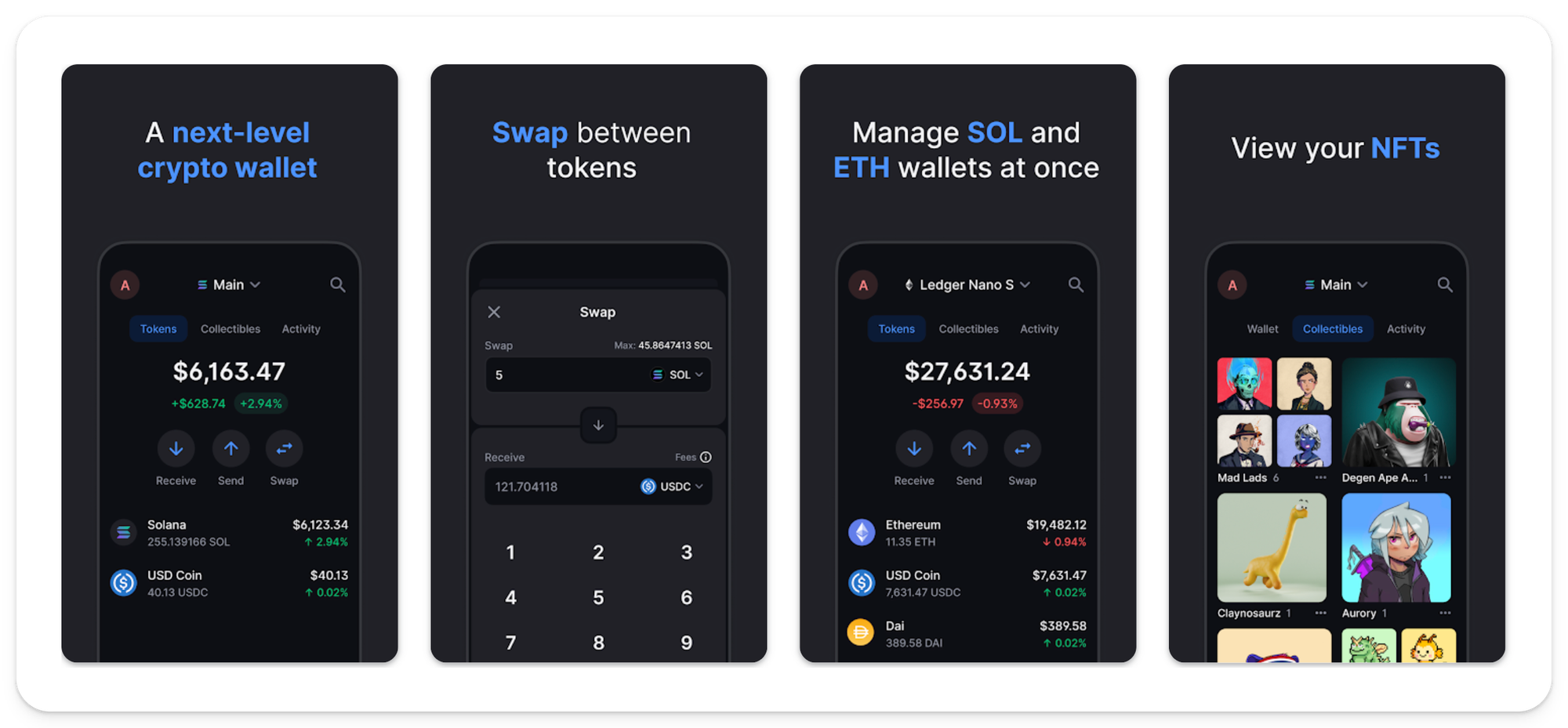
- Install Backpack: Download Backpack from the official site (available as a desktop application and browser extension). Upon launching, choose “Create a new wallet.”
- Secure Your Wallet: Backpack will generate a 24-word Secret Recovery Phrase. Write this down carefully – it’s your master key. Set a password for quick access on your device.
- Add a Solana xNFT: Backpack’s unique feature is xNFTs (executable NFTs). In the sidebar, there’s an xNFT store. Let’s say you want to add a Solana dApp like a DeFi dashboard – find it in the xNFT catalog and click “Install.” It will now appear inside your Backpack wallet interface as an app!
- Connect Ethereum Account: Backpack is multi-chain. Go to settings and enable Ethereum (and any other chain like Aptos or Sui if you wish). It will create an Ethereum account for you (deriving from the same seed phrase). You’ll see a toggle to switch between Solana and Ethereum in the wallet view.
- Try a Cross-Chain Action: For example, use the built-in “Backpack Exchange” xNFT. On Solana network, swap a small amount of SOL to a wrapped asset that can bridge, then switch to Ethereum network and see that asset available. The wallet seamlessly lets you interact with both chains. If you want to use an Ethereum dApp, you can use WalletConnect or a built-in xNFT for it – Backpack will prompt you on the Ethereum side to approve the transaction just like MetaMask would.
This guide shows how to get started with Backpack and highlights its core strength: being a one-stop hub for both Solana and Ethereum ecosystems (and beyond). The xNFT concept is like having mini apps inside your wallet – you could play a game, use a DeFi protocol, or view an NFT collection, all directly within Backpack, without needing to connect your wallet to external websites repeatedly.
After following these steps, you have a single wallet application where you can manage SOL and ETH, and even run decentralized apps inside it. Backpack is new, so expect updates and improvements rapidly. It’s a slightly more advanced wallet for users who want the cutting edge of Solana tech and multi-chain flexibility in one.
Rating: ⭐⭐⭐⭐☆ (4/5)
4. Atomic Wallet
🔒 Security: Atomic Wallet is non-custodial – your private keys and backup phrase stay on your device under encryption. It doesn’t require an account or KYC. That said, it’s not open source, so users trust the company’s reputation. For everyday security, Atomic allows you to set a strong password that’s needed to open the app and send funds. It’s important to keep your device malware-free since the wallet is as secure as your computer environment.
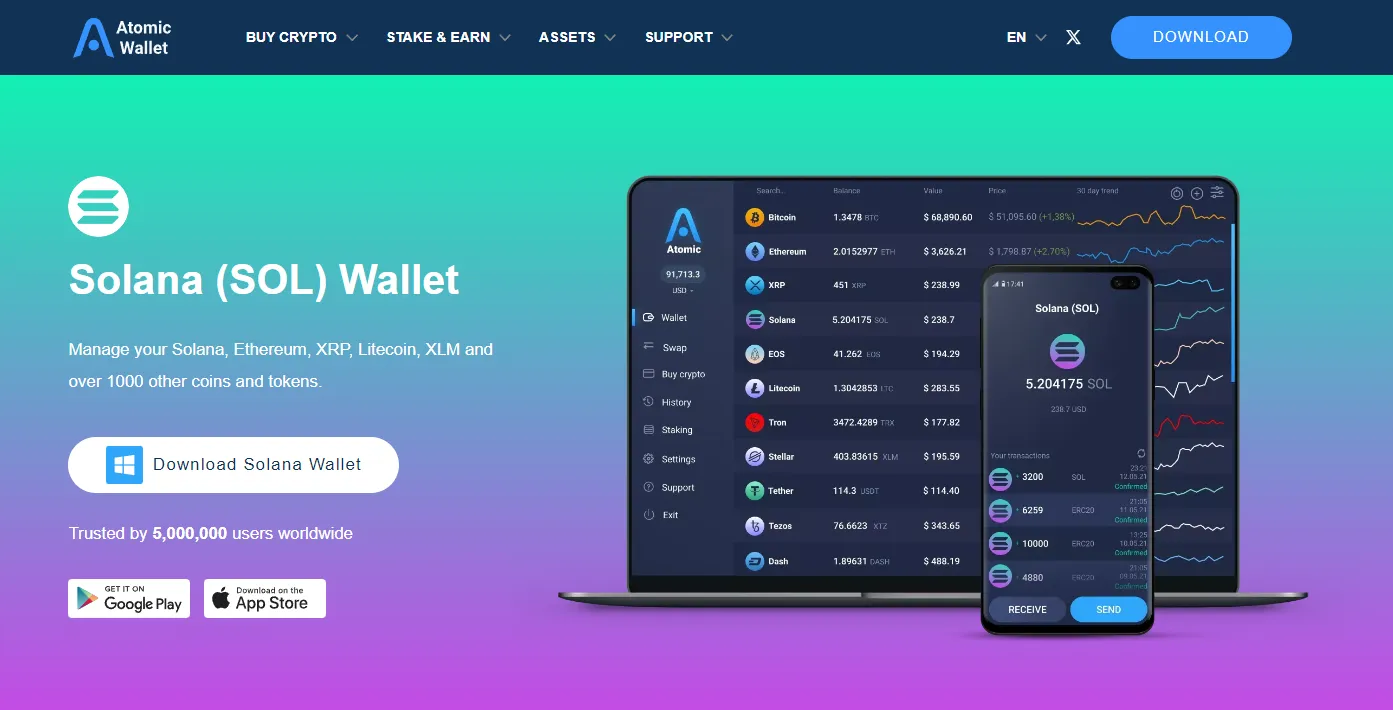
👍 Usability: Atomic’s interface is straightforward. Installing the desktop app (Windows, Mac, or Linux) and creating a wallet takes just a minute or two. For Solana, as soon as you open Atomic Wallet, you’ll see a SOL account (it generates one by default for each supported coin). Sending SOL or SPL tokens is done on a simple form – enter address, amount, hit send. Atomic also has a built-in swapping service; for example, you can swap SOL to ETH right in the wallet. It’s very convenient for users who don’t want to use exchanges for every little trade.
🔗 Ethereum Integration: Atomic Wallet is multi-chain and fully supports Ethereum. You can hold ETH and ERC-20 tokens alongside SOL. Switching assets is as easy as clicking on a different coin in your wallet list. The wallet’s Exchange tab even lets you perform cross-chain swaps (partnered with third-party services) – e.g., exchange Ethereum for Solana in one go. While those swaps have fees, it spares you the step of sending assets to an exchange. For advanced users, Atomic also offers an “Ethereum staking” feature and DeFi staking for certain coins, though Solana staking is natively supported as well.
In essence, Atomic Wallet aims to be a jack-of-all-trades. It’s quite handy for someone who has a bit of everything – maybe some SOL, some ETH, a little ADA – because you can manage it all in one place. The “atomic” in its name refers to atomic swaps, which was one of its original big features, allowing direct peer-to-peer exchanges. These days, most people use the simpler instant exchange feature that the wallet provides.
One thing to keep in mind: back in mid-2023, Atomic Wallet did experience a security incident where some users’ wallets were compromised. The team addressed the issues and provided updates, but it served as a reminder to always be cautious: keep your app updated, use strong passwords, and if you can, don’t keep your life savings in any single hot wallet. Despite that setback, Atomic remains popular, especially for those who appreciate an all-in-one solution with a clean UI.
Rating: ⭐⭐⭐☆☆ (3.5/5)
5. MathWallet
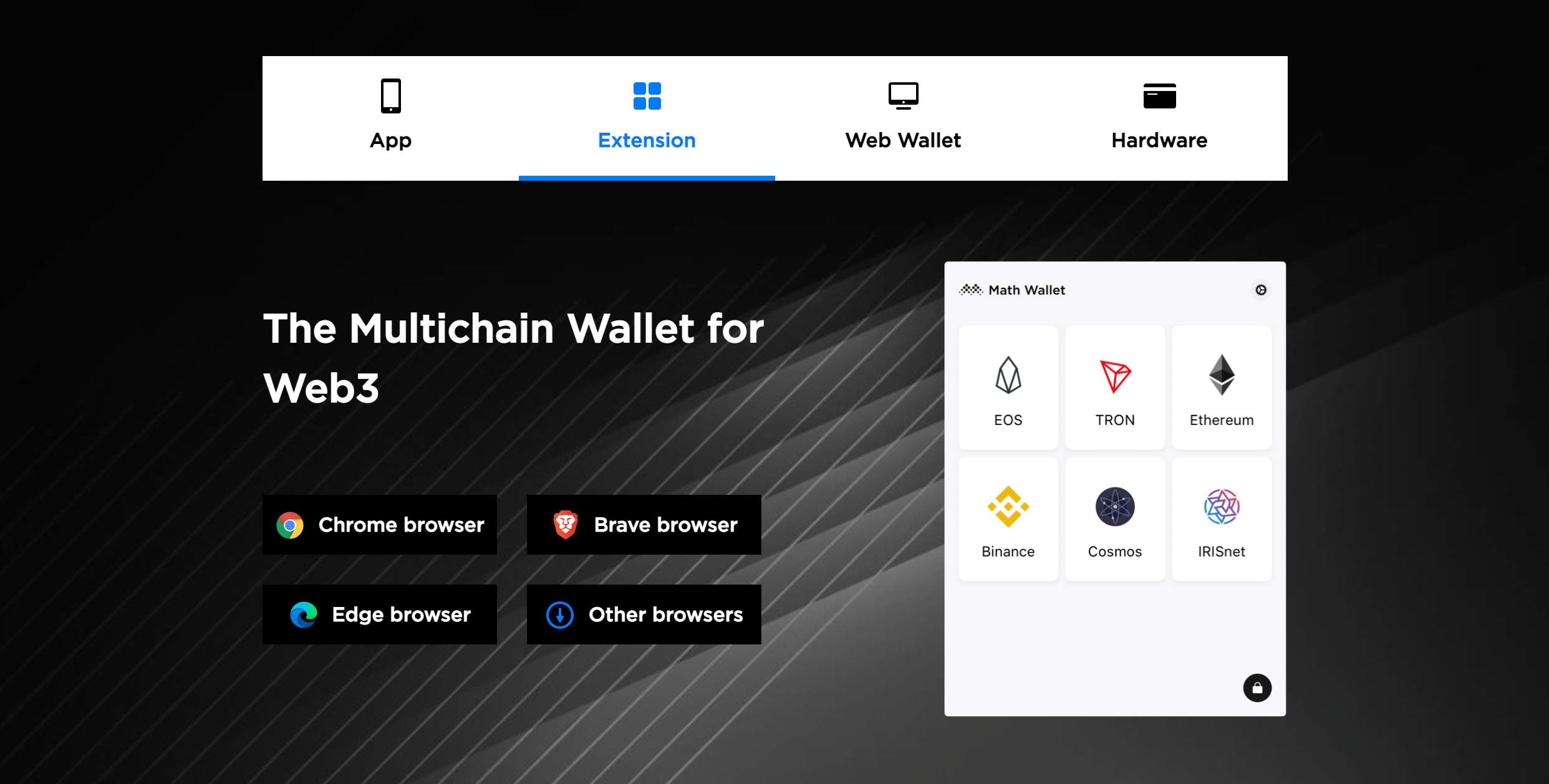
MathWallet is like the multilingual translator of crypto wallets – it speaks almost every blockchain. As a desktop user, you might encounter MathWallet as a browser extension (similar to Phantom or MetaMask) that can switch between dozens of networks, including Solana. It’s a powerful tool, but with power comes a bit of complexity.
The setup is easy enough: install the MathWallet extension, create a wallet, and you’ll get a seed phrase. By default, MathWallet might start on Ethereum or its own chain, so you have to manually add a Solana wallet within the extension interface. Once added, you can switch the network to Solana and see your SOL account. The interface isn’t the prettiest, but it’s functional – you can view your address, send SOL, and see token balances.
A big draw for MathWallet is the built-in dApp browser (more relevant on its mobile app, but on desktop extension it has quicklinks to popular dApps too). For instance, if you want to use a Solana DeFi app, MathWallet can connect directly. It also supports WalletConnect for Solana, which some multi-chain apps use.
One strength is also a weakness: MathWallet’s support for 100+ chains means it’s a bit heavy and sometimes less optimized for Solana specifically. It will work with Solana programs and sites, but you might not get the same tailored experience as with Phantom or Solflare. However, if you are the kind of user who juggles Solana, Ethereum, Binance Smart Chain, Polygon, and maybe some Polkadot and Cosmos — MathWallet lets you handle all within one extension (or the mobile app). It’s for the power user who doesn’t mind a slightly less polished interface in exchange for versatility.
Rating: ★★★☆☆ (3/5)
Pro Tip: MathWallet isn’t just a browser plugin – it has a full mobile app and even a web wallet. You can import the same recovery phrase on your phone’s MathWallet app and your browser extension to manage your Solana wallet across devices. Just be sure to keep that recovery phrase extremely safe, since it unlocks a whole lot of chains!
Mobile Wallets (Apps for Smartphones)
Mobile wallets let you carry your SOL in your pocket. These are apps for iOS and Android that manage your Solana accounts, often with features like QR code scanning and push notifications. They’re great for quick transfers on the go or interacting with Solana dApps through an in-app browser. Below, we break down five of the top mobile Solana wallets and what makes each unique.
Top 5 Mobile Wallets:
- Solflare Wallet – ⭐⭐⭐⭐⭐
- Trust Wallet – ⭐⭐⭐⭐☆
- SafePal Wallet – ⭐⭐⭐⭐☆
- Glow Wallet – ⭐⭐⭐☆☆
- Coin98 Wallet – ★★★☆☆
| Mobile Wallet | Security | ETH Support | Ease of Use | Extra Features |
|---|---|---|---|---|
| Solflare | Non-custodial (Biometric lock support) | No (Solana only) | Easy | SOL staking, Ledger integration |
| Trust Wallet | Non-custodial (open source) | Yes (multi-chain) | Easy | DApp browser, staking for some assets |
| SafePal | Non-custodial (hardware optional) | Yes | Moderate | DApp browser, NFT support, swap |
| Glow | Non-custodial | No (Solana only) | Very Easy | Simplified UI, cross-platform (iOS, Chrome) |
| Coin98 | Non-custodial | Yes (50+ chains) | Moderate | Built-in DeFi (swap, bridge), NFT gallery |
1. Solflare Wallet
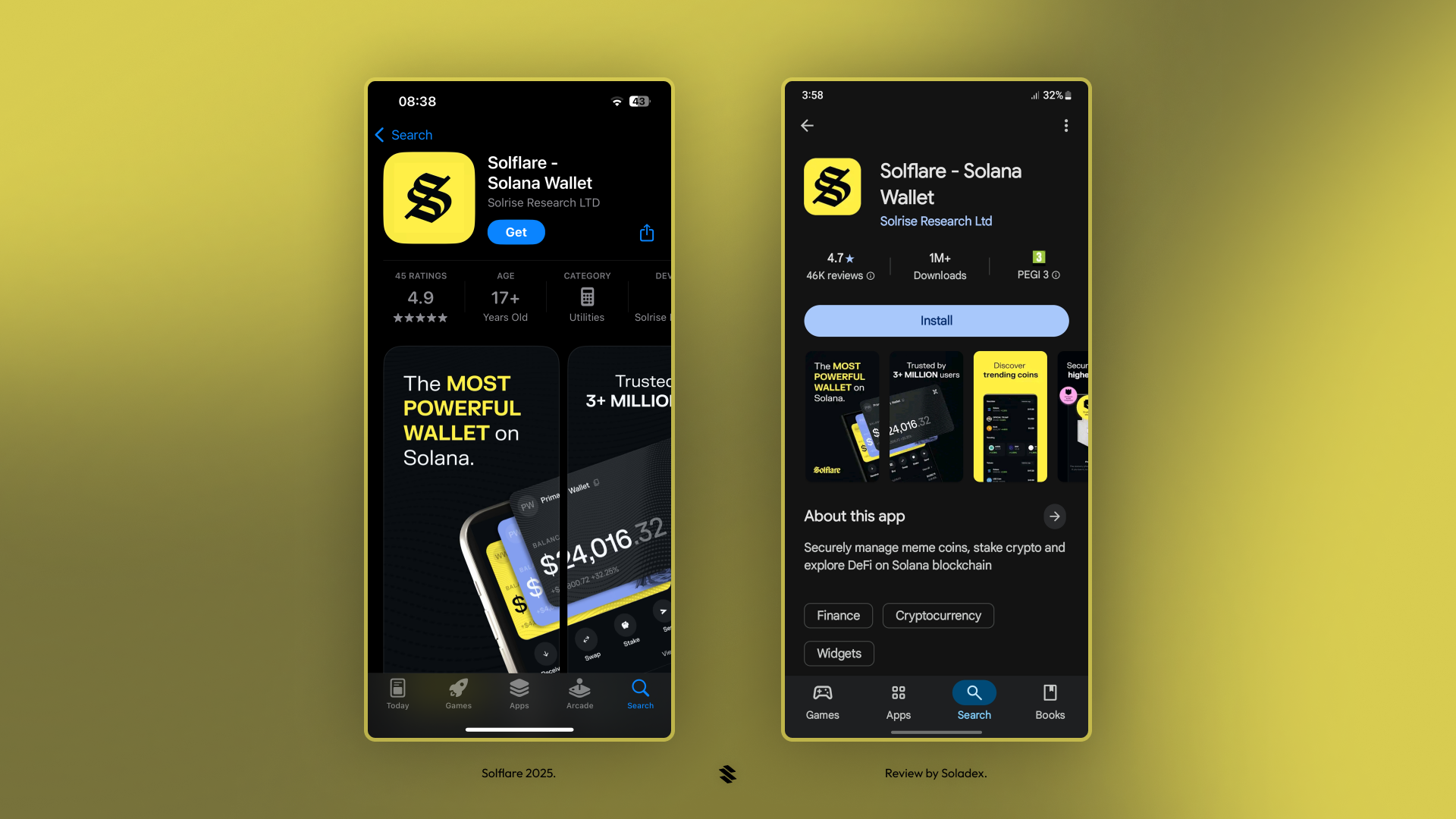
What is Solflare?
Solflare is one of the oldest Solana wallets, developed by early Solana community members. It’s available as a mobile app (and also as a web/extension). On mobile, it offers a full-featured Solana experience: you can send/receive SOL, stake your SOL, view collectibles, and even interact with Solana dApps via an in-app browser.
How secure is it?
Being non-custodial, Solflare gives you a seed phrase that you must keep safe. The app itself can be locked with biometrics (fingerprint/FaceID) for convenience. It also has integration with Ledger devices – meaning if you have a Ledger Nano, you can connect it to Solflare mobile via cable or wireless (depending on Ledger model) and use the secure hardware to approve transactions while using the friendly Solflare interface.
Is it easy for beginners?
Yes. Solflare’s UI is clean and straightforward. When you open the app, you see your balance and a list of tokens. There’s a big button for “Receive” (to show your address QR code) and one for “Send”. Staking is also newbie-friendly: a dedicated section lets you delegate SOL to stake with just a few taps, and it even suggests reliable validators. The learning curve is small – if you’ve used any crypto wallet before, Solflare will feel familiar.
Any notable features?
Solflare introduced a clever integration for Ethereum users: a MetaMask Snap. This isn’t directly in the mobile app, but it’s indicative of Solflare’s innovation. On mobile specifically, the built-in dApp browser is super useful – you can go to a site like Jupiter (a Solana DEX aggregator) within the app and swap tokens, or visit Magic Eden to browse NFTs, all without leaving Solflare or copying addresses around. It’s like having an all-in-one Solana hub in your pocket.
One can’t talk about Solflare without mentioning performance – Solana’s network can get congested, but Solflare tends to handle things gracefully, queuing transactions and allowing you to set custom transaction fees if you want to speed up in times of congestion.
Rating: ⭐⭐⭐⭐⭐ (5/5)
2. Trust Wallet
Pros:
|
Cons:
|
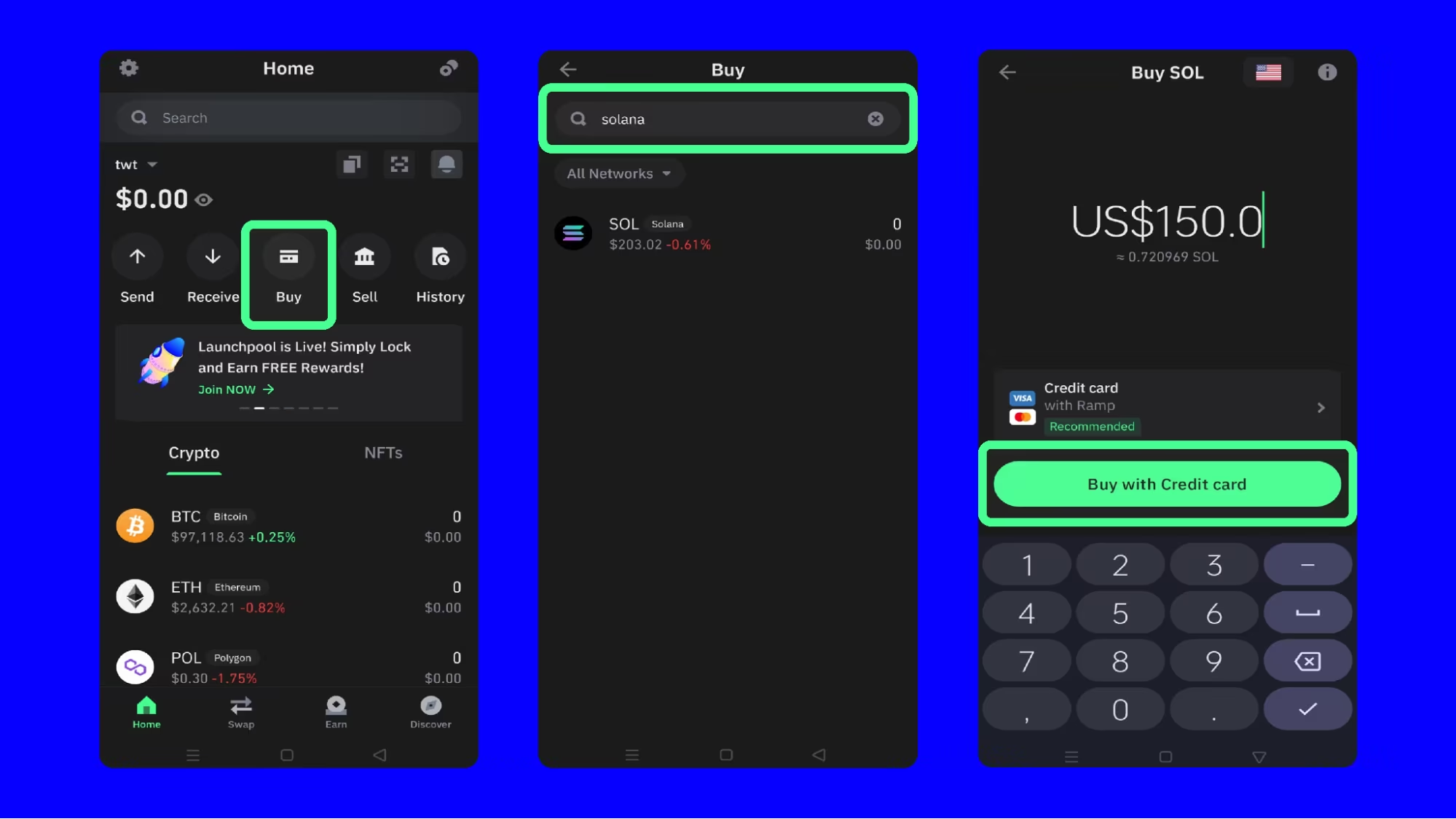
Trust Wallet has a massive user base, often serving as many people’s first crypto wallet. For a Solana user, Trust Wallet is a convenient option if you also dabble in other crypto ecosystems and want one app for everything. Adding Solana to Trust is as simple as toggling it on in the list of blockchains. Once on, you’ll get a SOL wallet address. Receiving SOL from an exchange straight into Trust is no problem – just copy your address or scan the QR code.
Where Trust shines is simplicity: need to quickly send some SOL to a friend? Two taps and it’s done. Want to convert some SOL to another token like USDC? Trust’s integrated swap (via 1inch or other aggregator behind the scenes) might help if there’s liquidity. However, for Solana-specific features like NFT viewing, Trust is not there yet. It’s really a jack-of-all-trades wallet rather than a Solana specialist.
Security in Trust Wallet is standard for mobile wallets: you have a 12-word phrase, and you can set a passcode or biometric lock on the app. There’s no advanced multisig or anything, but for everyday use it’s fine. Always remember: since Trust supports so many chains, your one recovery phrase is like the keys to a kingdom of different crypto assets – guard it well!
Rating: ⭐⭐⭐⭐☆ (4.5/5)
3. SafePal Wallet
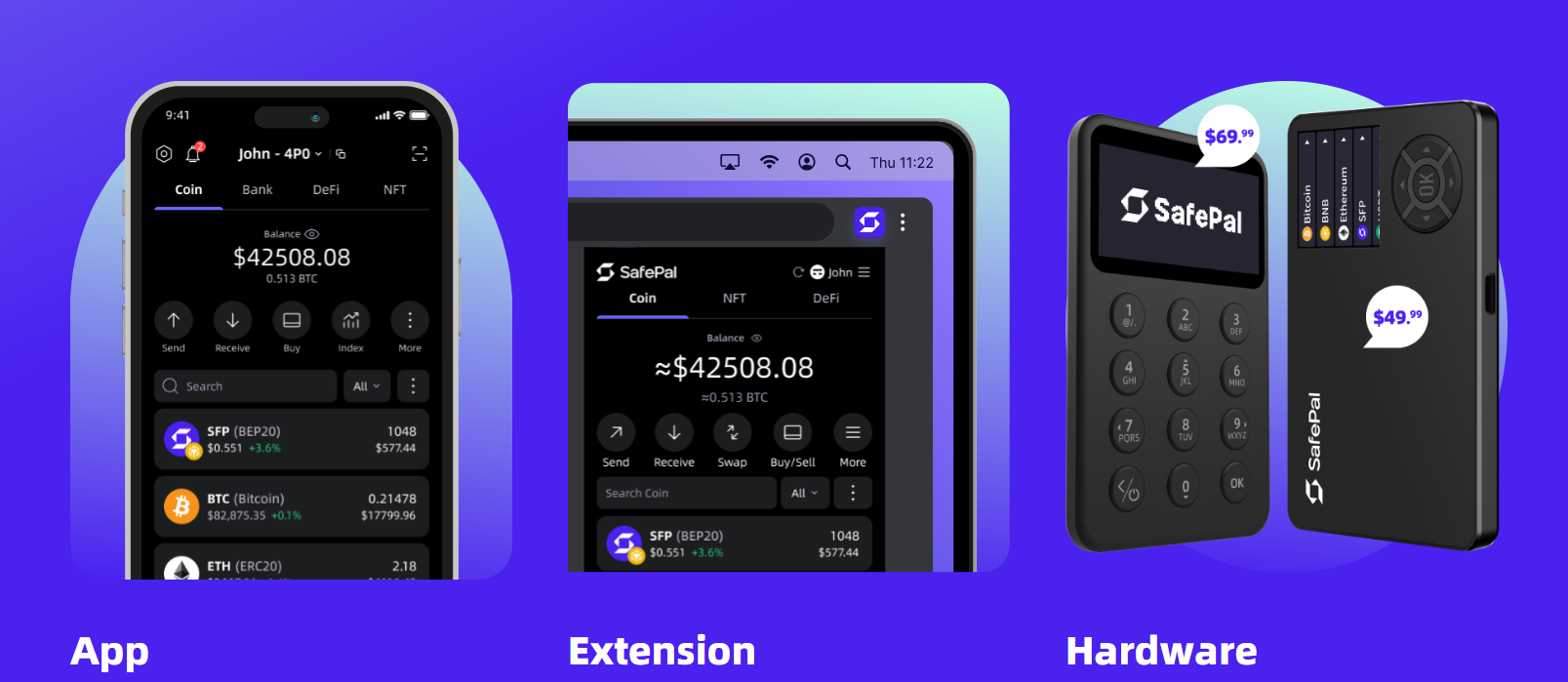
- Download the SafePal App: Install SafePal from the App Store/Google Play and create a new wallet. You’ll be given a 12-word seed phrase; write it down and store it securely. Set a password/PIN for the app.
- Add Solana to Your Wallet: By default SafePal might show popular chains like BTC, ETH, BNB. To add Solana, go to the wallet management and find SOL or Solana in the list of supported blockchains. Tap to add it. Now your SafePal wallet includes a Solana account (address) ready to use.
- Receive SOL: Tap on Solana in your wallet to open that account. Press “Receive” to get your SOL deposit address (and QR code). Send some SOL from an exchange or another wallet to this address to fund your SafePal wallet.
- Explore the DApp Browser: SafePal has a built-in DApp browser (on Android; on iOS, because of Apple’s rules, you might have to use WalletConnect). In the DApp browser, you can directly visit Solana dApps. For instance, go to Raydium or Orca (Solana DEXes) via the browser. The SafePal app will automatically connect your Solana wallet to the site, letting you swap or provide liquidity easily.
- Optional Hardware Link: If you have the SafePal S1 hardware wallet, you can link it at this stage. In the app’s settings, choose “Bind SafePal Hardware Wallet” and follow the instructions. This will sync your mobile wallet with the offline device. Next time you send SOL (or any crypto), the app will prompt you to scan a QR code with the S1 and confirm the transaction on the hardware – adding an extra security step. This is optional but a great feature for those who have the device.
By following these steps, you’ve set up SafePal as a mobile Solana wallet and even leveraged its multi-chain DApp capabilities and hardware support. Now you can manage SOL on mobile with the peace of mind that you could integrate a hardware signer if needed, or just enjoy the convenience of a hot wallet.
Rating: ⭐⭐⭐⭐☆ (4/5)
4. Glow Wallet
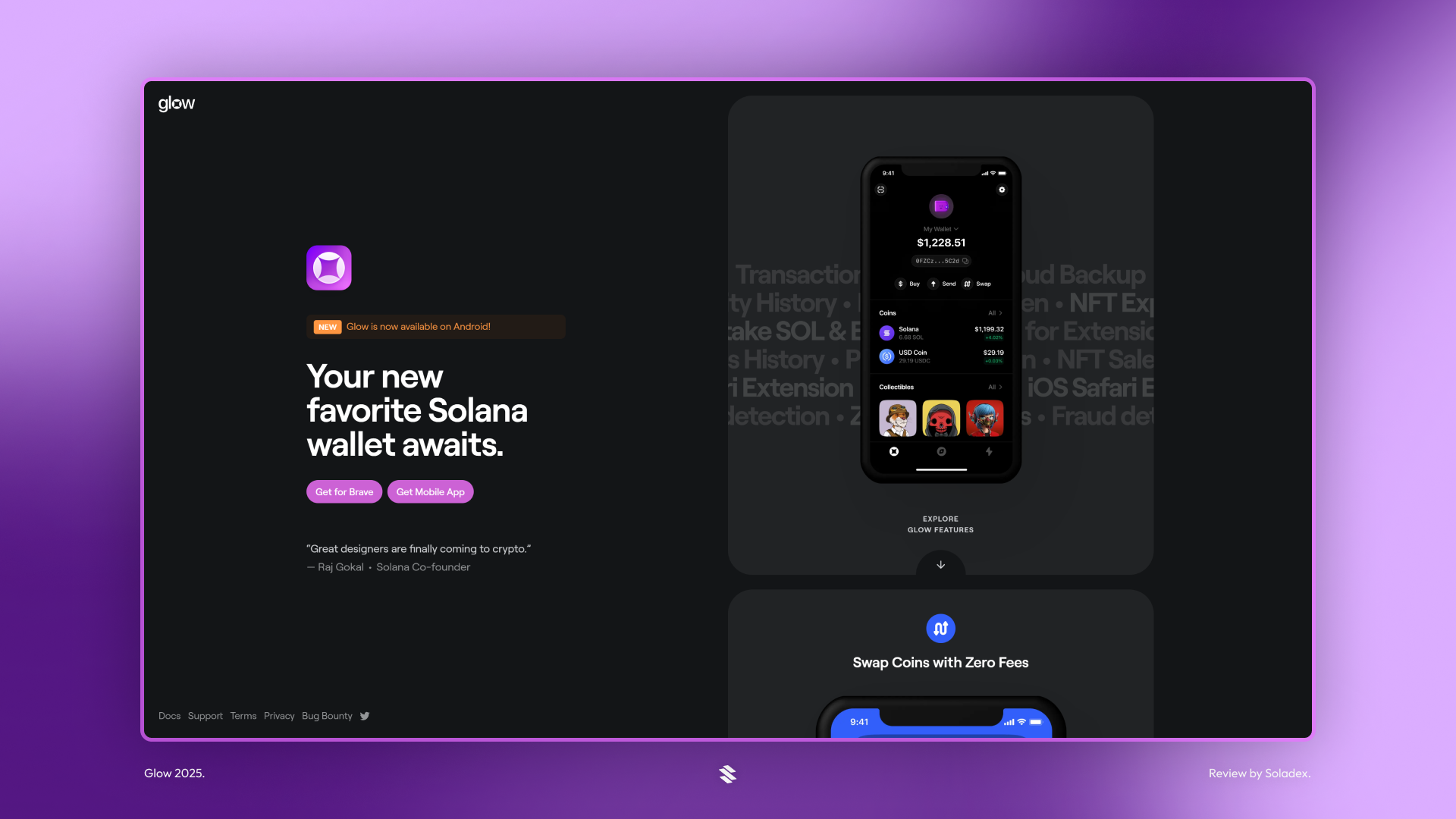
🔒 Security: Glow is a non-custodial wallet, so like others, it gives you a recovery phrase that controls your funds. It allows you to enable FaceID/TouchID or a PIN for quick access on your phone, which adds a layer of security (so not just anyone picking up your phone can open the app). While it doesn’t have hardware wallet support, Glow’s simplicity means fewer things can go wrong. It uses Solana’s robust security model under the hood and will warn you about suspicious addresses thanks to built-in safeguards.
👍 Usability: Glow’s hallmark is ease of use. The design is minimalist. When you open Glow, you’re not bombarded with extra info – it might just show “Solana – $X balance”. Big buttons for Send and Receive are right there. Setting it up initially is also a breeze; Glow’s onboarding walks you through writing down your seed phrase in a friendly way. It even has fun illustrations and a casual tone to not intimidate first-time crypto users. The app is very snappy at performing tasks like scanning QR codes to send SOL or viewing recent transactions.
🔗 Ethereum Integration: Glow is a Solana-first wallet and currently does not support Ethereum or other chains. This focus can be a good thing – the app is extremely streamlined for SOL tasks. You won’t find an Ethereum account in Glow, which means no confusion about switching networks. If you only care about Solana, you might actually prefer that Glow isn’t cluttered with other chains. (For those who do want multi-chain, they’d use a different wallet; Glow’s philosophy is to do Solana really well.) So under “ETH Integration,” Glow’s highlight is that it’s purely Solana – you’ll interact with Solana dApps and tokens exclusively, ensuring an optimized experience for that ecosystem.
Glow started on iOS and quickly became a hit among the Solana community for its simplicity and aesthetically pleasing design. The developers behind Glow emphasize user experience – for example, they incorporated an address book so you can save frequently used addresses with nicknames (no more double-checking long strings every time you send SOL). Glow also recently became available on Android and as a Chrome extension, so it’s expanding beyond the Apple crowd.
A neat feature: Glow will notify you of incoming transactions via push notification. If someone sends you 2 SOL, you get an alert on your phone – pretty handy! It also automatically detects token airdrops or new SPL tokens in your account and shows them, but in a way that combats spam tokens (Solana sometimes has spam airdrops – Glow hides those by default to keep your wallet tidy).
All in all, Glow Wallet is perfect if you want a no-fuss, Solana-only mobile wallet that just works. It’s great for holding some SOL, maybe an NFT or two, and doing straightforward transactions. The lack of Ethereum or other chain support isn’t a drawback unless you explicitly need one app to do everything. Glow keeps it focused, which many users appreciate.
Rating: ⭐⭐⭐☆☆ (3.5/5)
5. Coin98 Wallet
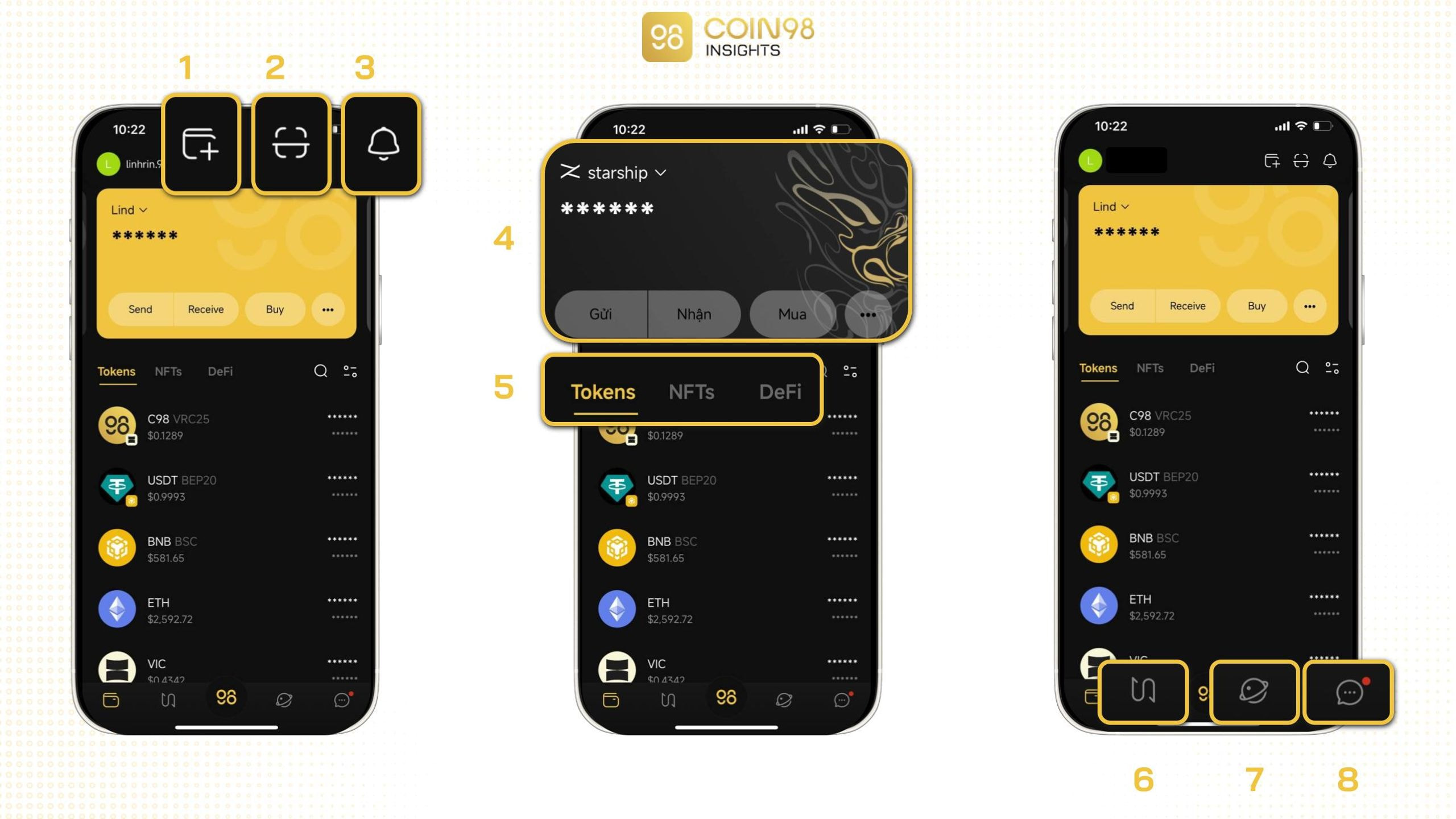
Coin98 Wallet (sometimes called Coin98 Super App) is a powerhouse for the DeFi enthusiast. Originating from the Asian crypto community, it’s packed with features. When you first open Coin98, you’ll notice it supports an array of blockchains – Solana, Ethereum, BNB Chain, Avalanche, Polygon, and many more. The interface is vibrant and might feel a bit busy if you’re used to simple wallets.
For Solana, Coin98 gives you full functionality: create/import a Solana wallet, see your SOL and SPL token balances, and interact with Solana dApps. One of its standout features is the built-in cross-chain bridge and swap. Suppose you have some SOL but you need some ETH for gas on Ethereum – Coin98 has a feature where you can swap SOL (or a Solana token) directly to an Ethereum token in-app. It uses the Coin98 Exchange/Bridge service behind the scenes to handle that. This is incredibly convenient if you’re managing a portfolio across chains.
Security is non-custodial; you manage your seed phrases. Actually, Coin98 allows multiple wallets and even lets you set up different seed phrases for different chains if you want. It can be as complex or as straightforward as you decide. They also introduced an optional passcode and fingerprint login for quick access. The app includes an “alert” system for potential scam tokens and a feature called “Space Gate” (that’s their cross-chain bridge).
One unique aspect is Coin98’s focus on DeFi integration: they have a dApp browser like others, but also a section with yield farming opportunities and market charts. It’s more than just a wallet, almost a full crypto management toolkit. For example, directly within Coin98 you could stake some coins in a DeFi protocol (if they’ve integrated it) or participate in token sales on certain launchpads.
The flip side of all these features is that newcomers might feel overwhelmed. It’s not the very simplest wallet to just send some SOL from point A to B – there are many buttons and options. But if you consider yourself a power user or you want one app to do as much as possible, Coin98 is a top contender.
Rating: ★★★☆☆ (3/5)
Pro Tip: Take advantage of Coin98’s built-in bridge when moving assets between Solana and Ethereum. For example, if you need to get USDC from Solana to Ethereum, Coin98 lets you do that in-app via their Space Gate without manually going through an exchange. Just always double-check the fees and amounts, as cross-chain operations can incur higher fees than regular SOL transfers.
Online Wallets (Custodial Exchanges)
Online wallets refer to exchanges or web services where you can store your Solana (SOL) by trusting a third party. These are the likes of Binance, Coinbase, etc., where you might buy crypto and leave it on the platform. They offer convenience – you can log in from anywhere and you don’t manage a seed phrase – but at the cost of not having full control (the exchange holds your private keys). Below is a comparison and breakdown of five major platforms that support Solana.
Top 5 Online (Exchange) Wallets:
- Binance – ⭐⭐⭐⭐☆
- Coinbase – ⭐⭐⭐⭐☆
- Kraken – ⭐⭐⭐⭐☆
- Crypto.com – ⭐⭐⭐☆
- Bitget – ⭐⭐⭐☆☆
| Exchange | Security | ETH Support | Ease of Use | Extra Features |
|---|---|---|---|---|
| Binance | 2FA, SAFU fund, global leader | Yes (and 100s more) | Moderate (advanced options) | Earn (SOL staking), Visa card, Launchpad |
| Coinbase | Regulated, insured (USD balances) | Yes (major assets) | Very Easy | Direct fiat purchases, staking SOL |
| Kraken | High security record, 2FA | Yes (major assets) | Moderate | On-chain staking, advanced trading |
| Crypto.com | 2FA, insurance cover | Yes (many assets) | Easy (mobile app) | Crypto Visa card, Earn interest |
| Bitget | 2FA, protection fund | Yes (many assets) | Moderate | Copy trading, futures & margin |
1. Binance
Image: Binance web dashboard showing a SOL balance and trading chart.
Video: Tutorial on buying Solana on Binance and withdrawing to a wallet.
How does Binance work as a wallet?
Binance is an exchange first and foremost, but when you hold crypto on it, it effectively functions as an online wallet. You have an account (secured by email/password and 2FA), and under that account you have a Solana balance. When you deposit SOL to Binance, they credit your account with that SOL (Binance holds the actual SOL in their big cold storage pools). You can then trade it, or just hold it. It’s very easy to see your portfolio value and trade directly to other assets.
What about security on Binance?
Binance has a pretty good security track record, though “not your keys, not your coins” always applies. They do have a Secure Asset Fund for Users (SAFU) which is like an insurance fund to cover losses in extreme cases. Binance strongly encourages 2-Factor Authentication; you can use Google Authenticator or SMS (go with Authenticator for better security). Also, features like address whitelisting (so if someone hacked you they couldn’t withdraw to an unapproved address for 24-48h) add extra safety. It’s one of the largest exchanges, so they invest a lot in security. Still, hacks can happen (Binance itself was hacked in 2019 but fully reimbursed users). So, it’s relatively secure for an online wallet, but not as foolproof as self-custody.
Convenience and features for SOL holders?
Very high. If you hold SOL on Binance, you can do a lot with it: stake it on Binance Earn (Binance often offers locked or flexible staking where you deposit SOL and earn interest without dealing with native staking complexities). You can also use SOL as collateral if you’re into margin trading or borrow against it. Plus, Binance has its own NFT marketplace – while primarily on BNB Chain, they have integrated other chains at times, possibly Solana NFTs too. For a user who just wants exposure to SOL’s price and maybe some yield, Binance is convenient – you can buy SOL with a credit card or bank transfer in many regions directly on the platform.
The downside of using Binance as your SOL wallet?
Mainly that you don’t control the coins. If Binance freezes withdrawals for some reason (network issues, regulatory issues), you can’t access your SOL on-chain. Also, if you want to interact with Solana dApps, you can’t do that with funds sitting on Binance; you’d have to withdraw to a real Solana wallet like Phantom to, say, play a blockchain game or use DeFi. Binance is best for holding and trading, not for using SOL in the Solana ecosystem actively.
For many, Binance’s benefits (ease of trade, all-in-one account) outweigh the downsides for short-to-mid term holding. Just consider moving to a personal wallet if you want to hold long-term or interact on-chain.
Rating: ⭐⭐⭐⭐☆ (4.5/5)
2. Coinbase
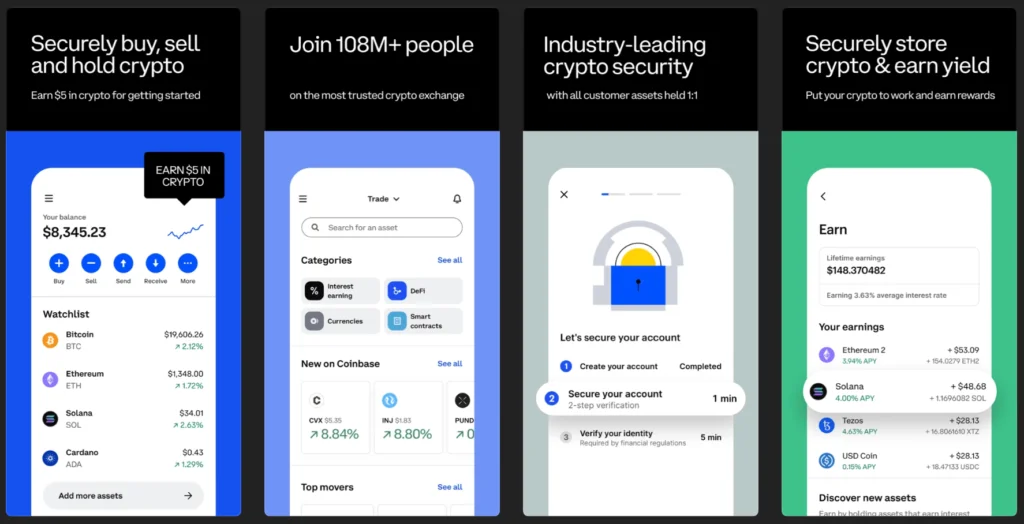
🔒 Security: Coinbase is known for its strong security measures and regulatory compliance. When using Coinbase as a wallet, you’re trusting their custody. They keep the majority of crypto in cold storage and have insurance for digital assets (though this typically covers breaches on their side, not if your individual account is compromised by, say, phishing). Enable 2FA on your account – ideally using an authenticator app. Coinbase also offers features like device approval (it emails you if a new device/IP tries to log in). It’s one of the few exchanges with a relatively clean record (no major hacks resulting in customer loss since inception).
👍 Usability: Coinbase’s interface is very beginner-friendly. If you have SOL in Coinbase, you’ll see it under your portfolio with a simple price chart and buttons to Buy, Sell, Send, Receive. To an average person, it feels as easy as using a stock trading app or PayPal. You can send SOL out by clicking Send, entering a Solana address (Coinbase will even warn you if the address doesn’t look like a Solana address to prevent mistakes). If someone sends you SOL, Coinbase will notify you and you’ll see it in your account almost instantly (after network confirmations). The mobile app is slick and the website is straightforward – basically, it’s hard to get confused on Coinbase.
🔗 Ethereum Integration: Coinbase isn’t just a Solana wallet – it supports Bitcoin, Ethereum, and hundreds of other assets. However, note we are talking about the main Coinbase exchange here (custodial). So yes, you can hold ETH and SOL simultaneously in your Coinbase account. But unlike a self-custodial multi-chain wallet, there’s no concept of “network switching” – each coin is just a separate balance on Coinbase’s ledger. The integration comes in the form of the Coinbase app showing you all your assets in one place. If you want to convert some ETH to SOL, it’s just a trade (market or convert function) away. So effectively, Coinbase is an all-in-one wallet for many cryptos – with the caveat you can’t use those cryptos in decentralized apps directly while on Coinbase.
For Solana users, one big feature Coinbase offers is staking rewards. If you hold SOL on Coinbase, by default Coinbase will stake it on your behalf and pay you around ~5% APY (minus their small commission). It’s completely hands-off; you’ll just notice your SOL balance ticking up a tiny bit every few days. This is great for beginners who don’t know how to stake or don’t want to deal with choosing validators – Coinbase does it for you (and even covers the lock-up/unlock processes behind the scenes so your SOL stays liquid).
Another convenience: fiat integration. You can sell SOL for USD or Euro on Coinbase easily and withdraw to your bank. So it’s like a wallet and on/off ramp combined. This is why many keep some funds on Coinbase – it’s just so easy to cash out if needed or to buy more crypto during a dip.
The trade-off of course is trust. Coinbase could, in theory, freeze assets (usually only if required by law or terms-of-service issues). And if you don’t set up security properly on your account, a SIM swap of your phone number or email hack could lead to theft. Always use strong passwords and 2FA (preferably not SMS). As far as online wallets go, Coinbase is top-tier in reliability and ease, making it a solid choice for small to medium SOL holdings or for those actively trading.
Rating: ⭐⭐⭐⭐☆ (4/5)
3. Kraken
- Create & Secure Account: Sign up on Kraken and complete any verification needed. Set up 2FA for login and funding (Kraken allows you to put 2FA on withdrawals which is a good security step).
- Deposit SOL: Go to Funding > Deposit and select Solana (SOL). Kraken will generate a Solana deposit address for your account. Send your SOL from your other wallet or exchange to this address. Within a few minutes, the balance will show up in your Kraken account under SOL.
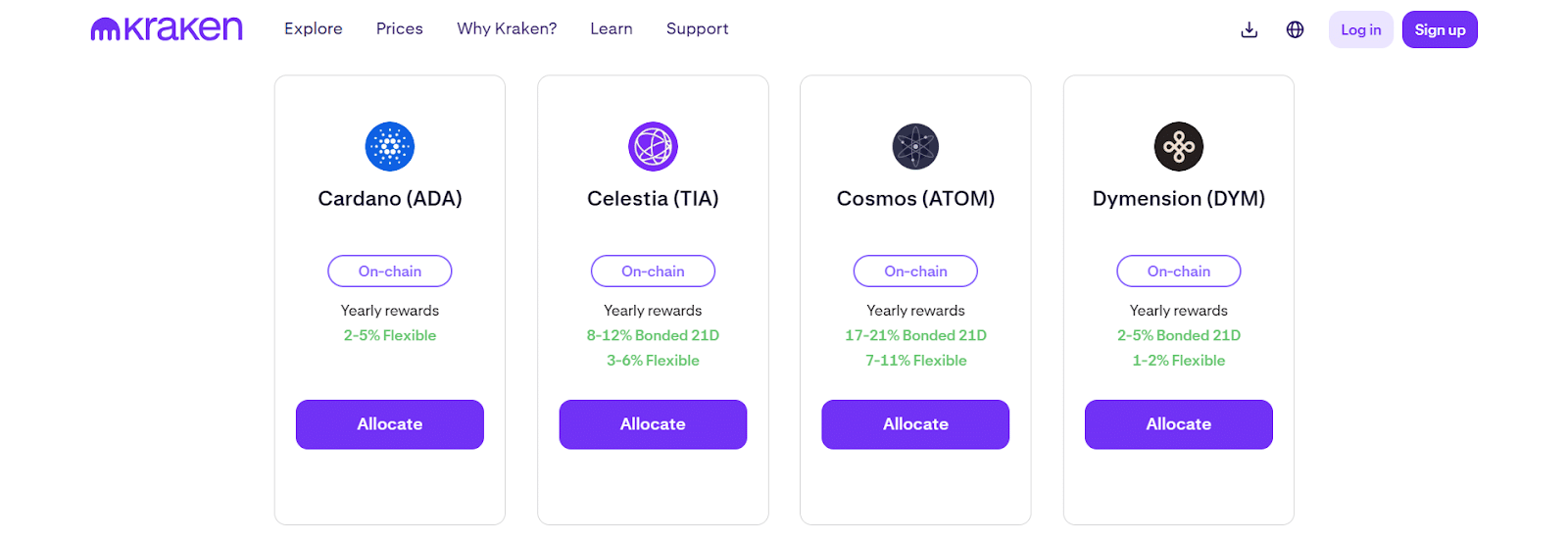
- Stake SOL: In the Kraken dashboard, navigate to “Earn” or “Staking”. Find Solana in the list of stakeable assets. Click “Stake” and choose how much of your SOL balance to stake. With a couple of clicks, Kraken will start staking that amount on your behalf. You’ll see your staked SOL and any rewards accumulating over time (Kraken pays out SOL staking rewards twice a week, and you can see the pending rewards).
- Earn Rewards & Manage: Once staked, your SOL begins earning ~6% APY (rate varies). You can choose to stake more if you deposit more SOL later, or un-stake anytime (Kraken doesn’t have a lockup for SOL – it’s liquid staking, meaning they manage the bonding period internally). Check your “Earn” section to see how much you’ve earned. For example, after a week, you might see 0.1 SOL earned on your 50 SOL stake.
- Withdraw SOL: When you want to take custody or use your SOL elsewhere, you can withdraw from Kraken. If you have staked SOL, you’d first hit “Unstake” which is immediate on Kraken’s side. Then go to Funding > Withdraw, select SOL, and input your personal wallet address (Phantom or others). Confirm the withdrawal (with 2FA), and Kraken will send the SOL out, usually within a minute or two since Solana is fast. Always double-check you copied the correct address – Kraken will also give a warning if it’s an invalid format.
This process shows that using Kraken as a “wallet” for Solana not only keeps your SOL safe on the exchange but also lets you easily earn staking rewards and withdraw when needed. It’s quite user-friendly for those who don’t want to manage staking manually on-chain.
Rating: ⭐⭐⭐⭐☆ (4/5)
4. Crypto.com
🔒 Security: Crypto.com takes security seriously with mandatory 2FA for withdrawals and a strong focus on compliance. They reportedly hold user assets 100% in cold storage with Ledger Vault, and funds are insured against theft up to a certain amount. The app will send you email and phone confirmations for withdrawals as well. There was a notable incident in early 2022 where some accounts got compromised, but Crypto.com reimbursed users and further tightened security (they introduced an account protection program). As an online wallet, if you enable all security features, it’s relatively safe, but always remain vigilant (phishing, etc.).
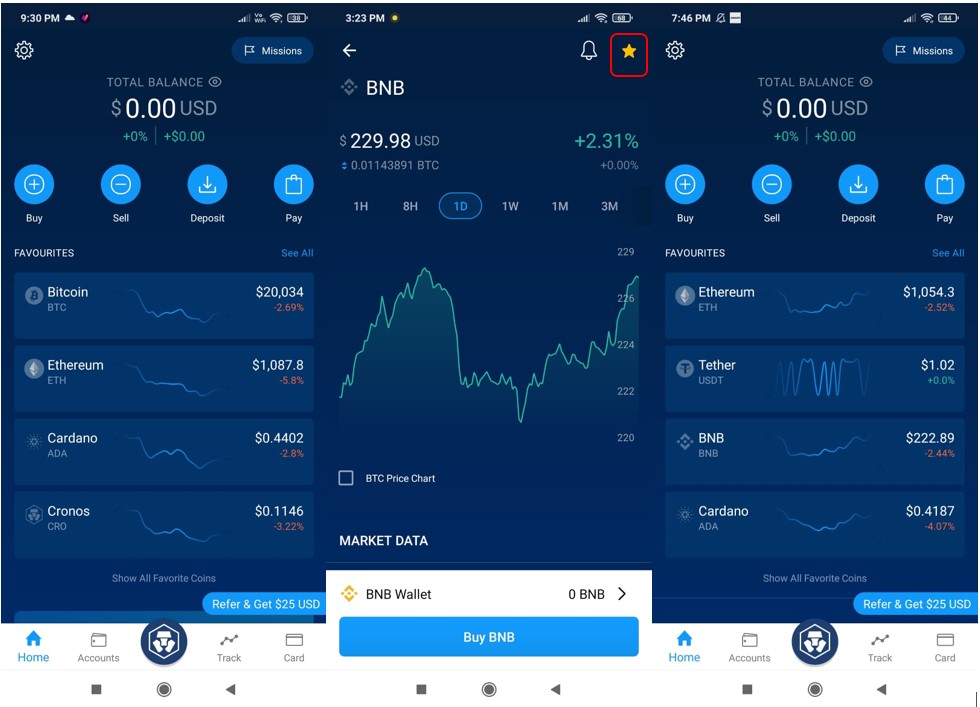
👍 Usability: The Crypto.com mobile app is their primary interface. It’s very easy to use once you get used to the “home” and “accounts” layout. If you hold SOL in the app, you’ll see it under your Crypto Wallet with current value. Buying more SOL with fiat is straightforward – Crypto.com supports purchases with bank or card (with fees on card purchases). The app also has price alerts, which is a handy feature if you’re watching SOL’s price and maybe want to buy/sell at certain levels.
🔗 Ethereum Integration: Crypto.com supports a ton of assets, including Ethereum and many ERC-20 tokens, in the same app. So you can have a portfolio that includes SOL, ETH, BTC, etc., all visible on one screen. They don’t unify them in one wallet since it’s custodial – each is separate in their system – but as a user you just see your list of coins. If you want to, say, convert some ETH to SOL, Crypto.com app has a trade function (basically their exchange backend) to swap one for the other at market rates. So managing a diverse crypto portfolio including Solana and Ethereum is seamless here.
One of Crypto.com’s flagship features is the Crypto.com Visa Card. If you hold and stake their CRO token you get card rewards, but even without that, you can top up the card with crypto (like SOL) which the app will convert to fiat for you to spend anywhere Visa is accepted. It’s a neat perk if you want to directly utilize your Solana gains in real life. You’d sell SOL in-app to USD or another fiat, then load USD to the card and spend.
Another feature: Crypto Earn. They often have promotional interest rates. For example, they might offer 3% APR on SOL if you lock it for 3 months in their Earn program (hypothetical rate). It’s not on-chain staking; it’s more like them using your assets maybe for lending/liquidity, but it’s simple: you deposit SOL into Earn, and you accrue more SOL over time, withdrawable after the term. The rates fluctuate and require CRO staking for best rates, but can be attractive if you’re okay with locking on an exchange.
Using Crypto.com as a wallet means you have to trust them similarly to others. They’re a big brand (with that Matt Damon ad and stadium naming and all), so they’re generally trusted, but they have had some growing pains. Still, for daily use, their app is robust and combines many functions: wallet, trading, staking, card, even an NFT marketplace (though Solana NFTs aren’t on their platform, primarily Ethereum). If you like an all-in-one financial app style approach and plan to maybe use crypto for spending, Crypto.com is a strong option.
Rating: ⭐⭐⭐☆ (3.5/5)
5. Bitget
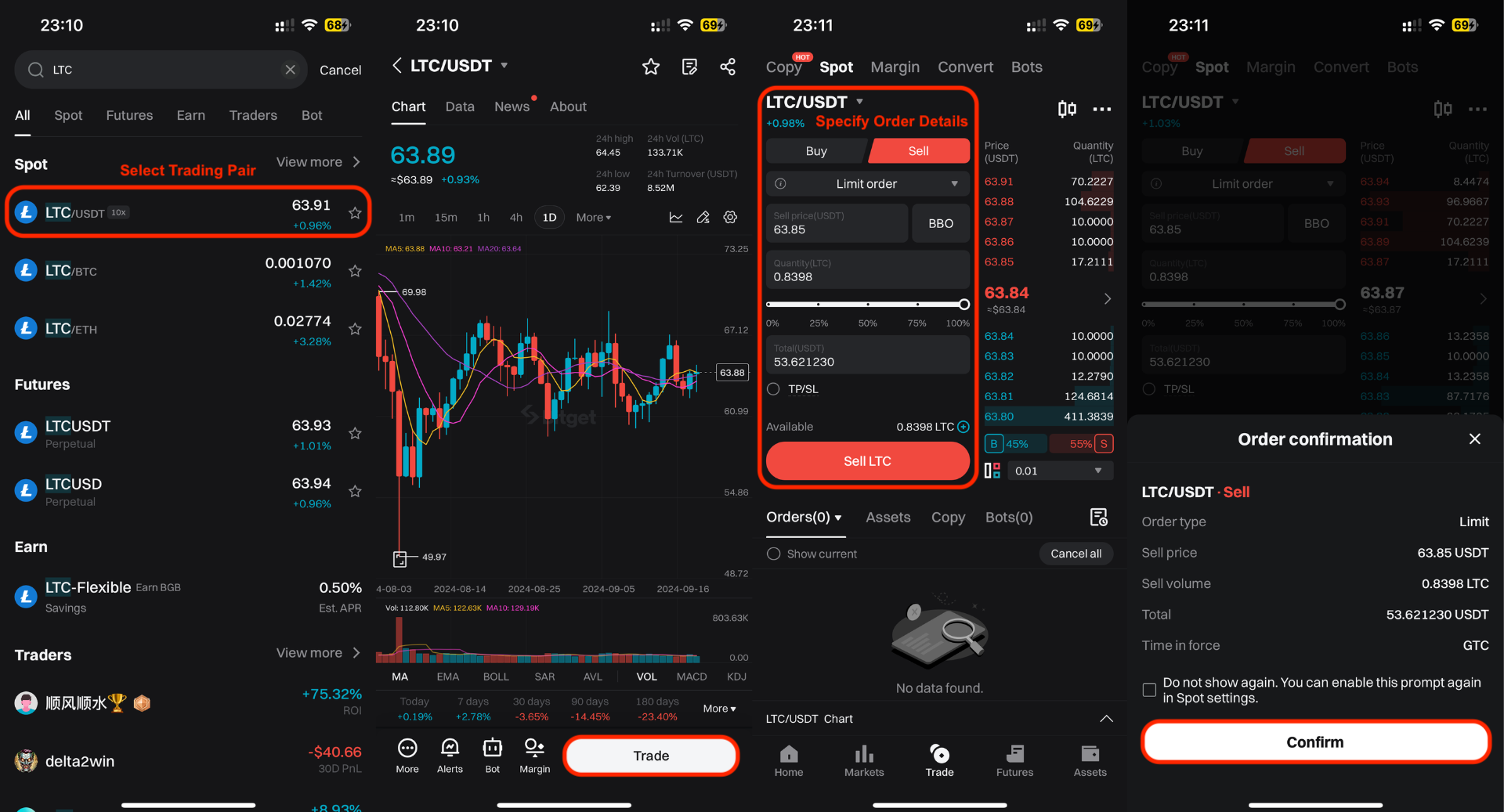
Bitget is a newer player in the exchange space that has gained popularity, particularly in Asia. It offers both spot trading and derivatives, and one of its unique selling points is “Copy Trading,” where less experienced users can automatically mirror trades of selected expert traders. As an online wallet for SOL, Bitget functions similarly to others: you deposit Solana and it shows up in your account balance, which you can then trade or withdraw later.
The interface might be a tad more complex for newcomers compared to Coinbase, as Bitget is geared towards traders. However, if your focus is holding SOL or doing occasional trades, it’s straightforward enough. Security on Bitget includes standard measures like 2FA and withdrawal whitelist. They also announced a Protection Fund (similar to Binance’s SAFU) worth a few hundred million dollars as an assurance to users that funds are safe.
Where Bitget shines for some users is the advanced trading features. If you ever want to try your hand at futures trading with SOL (be careful with leverage!), Bitget is a platform that offers that. But purely as a wallet, you might use Bitget if you find their promotions or fees attractive. They sometimes have zero-fee campaigns or welcome bonuses that effectively give you a bit more SOL or other assets for using them.
One thing to note: since Bitget is less regulated in the West, always ensure you can withdraw your funds to self-custody when you want. They haven’t had issues with withdrawals historically, but smaller exchanges carry a bit more risk than say a Coinbase or Kraken, just by virtue of not being as time-tested or heavily overseen by regulators. That said, Bitget’s growth and backing (they acquired BitKeep wallet etc.) show they’re aiming to be a big ecosystem player.
Rating: ⭐⭐⭐☆☆ (3/5)
Pro Tip: Bitget offers a “Protection Fund” which currently stands at ~$300 million. While you should not solely rely on this, it’s reassuring to know that Bitget has set aside funds to cover unexpected losses. Still, best practice with any exchange is to use strong 2FA, and consider moving large SOL holdings to your personal wallet for long-term safekeeping. For active trading or short-term holding, Bitget’s interface and features can be quite rewarding, especially if you utilize their copy-trade to potentially grow your holdings (but always do so cautiously and with due diligence on the traders you follow!).